
Understanding the Standards Library
Learn how the Standards Library turns the wording you reuse into linked entries that fill findings and stay connected to your reports.
Updated
The Standards Library holds the wording your reports use again and again: the clause you cite, the observation you write, the work you recommend. Save it once and it stays linked to the findings that use it, so the same issue is described, referenced and priced the same way on every job.
What a library entry holds
An entry is closer to a prepared finding than a saved paragraph. Alongside the text, it can carry the reference details, supporting diagrams and the costing lines that usually belong with that kind of defect.
- Reference Code: the clause number or internal reference for the entry.
- Observation: the wording that describes what was found.
- Reference Regulation/Clause: the clause itself, kept as a short abstract and as a full excerpt.
- Scope of Works, Assessment and Statement: what should happen next, and how the issue is judged.
- Diagrams and extracts: images you can attach to a report while writing it.
- Default materials, labour and tags: the costing lines and classifications that normally apply.
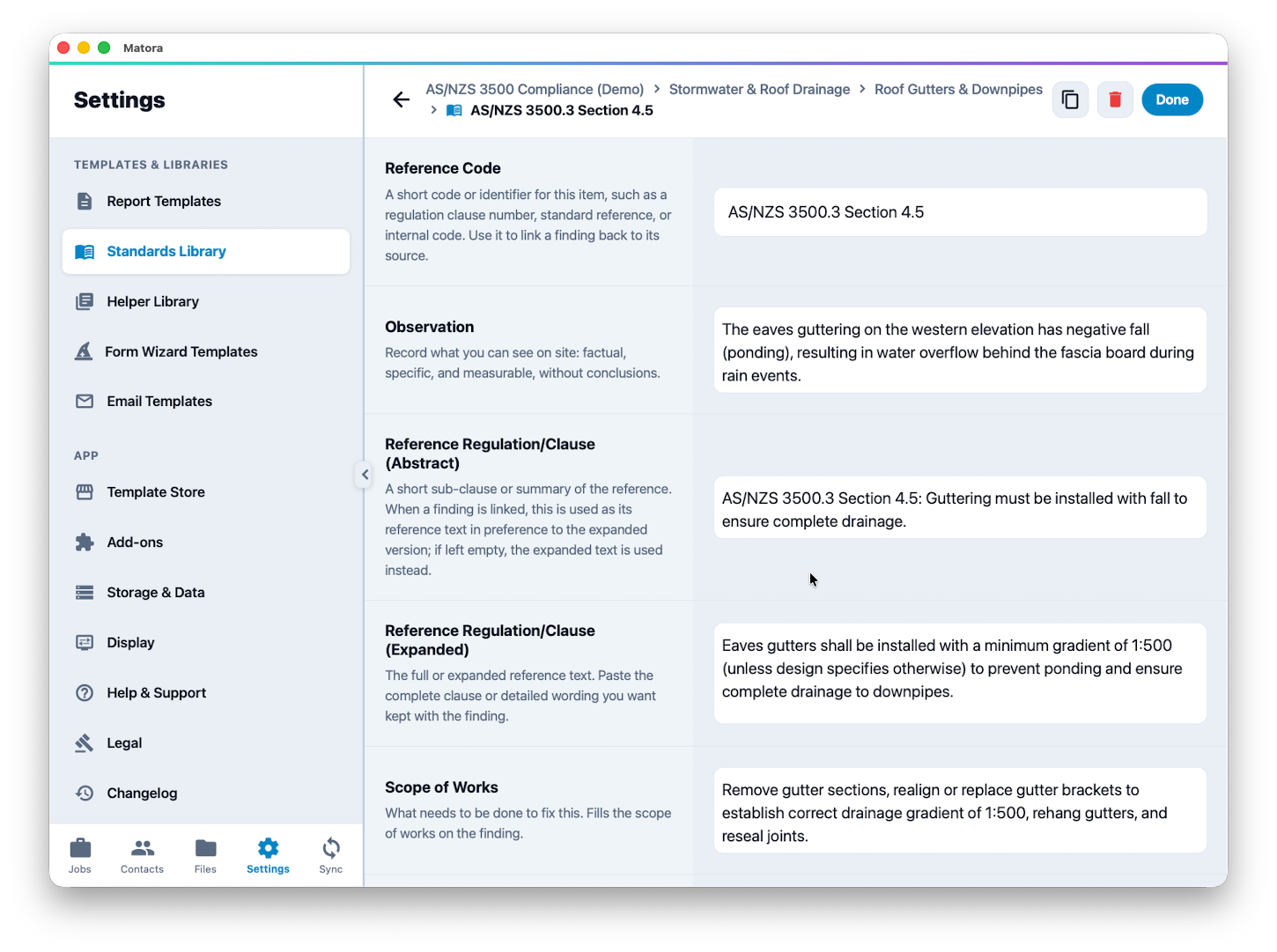
Not every entry needs every field. Fill the ones your reports actually print and leave the rest for entries that need them.
Standards Library or Helper Library?
Both save you retyping, but they behave differently. A Helper Library snippet is text you paste and then own: once it is in the report it has no memory of where it came from. A Standards Library entry stays linked to the finding it filled.
Use the Helper Library for wording that changes from job to job. Use the Standards Library when the same issue should be described, cited and costed consistently every time.
Standards travel in two directions
Most people find the first direction and stop there. The second is where the library earns its keep, because it grows out of work you have already done rather than an afternoon spent typing up clauses.
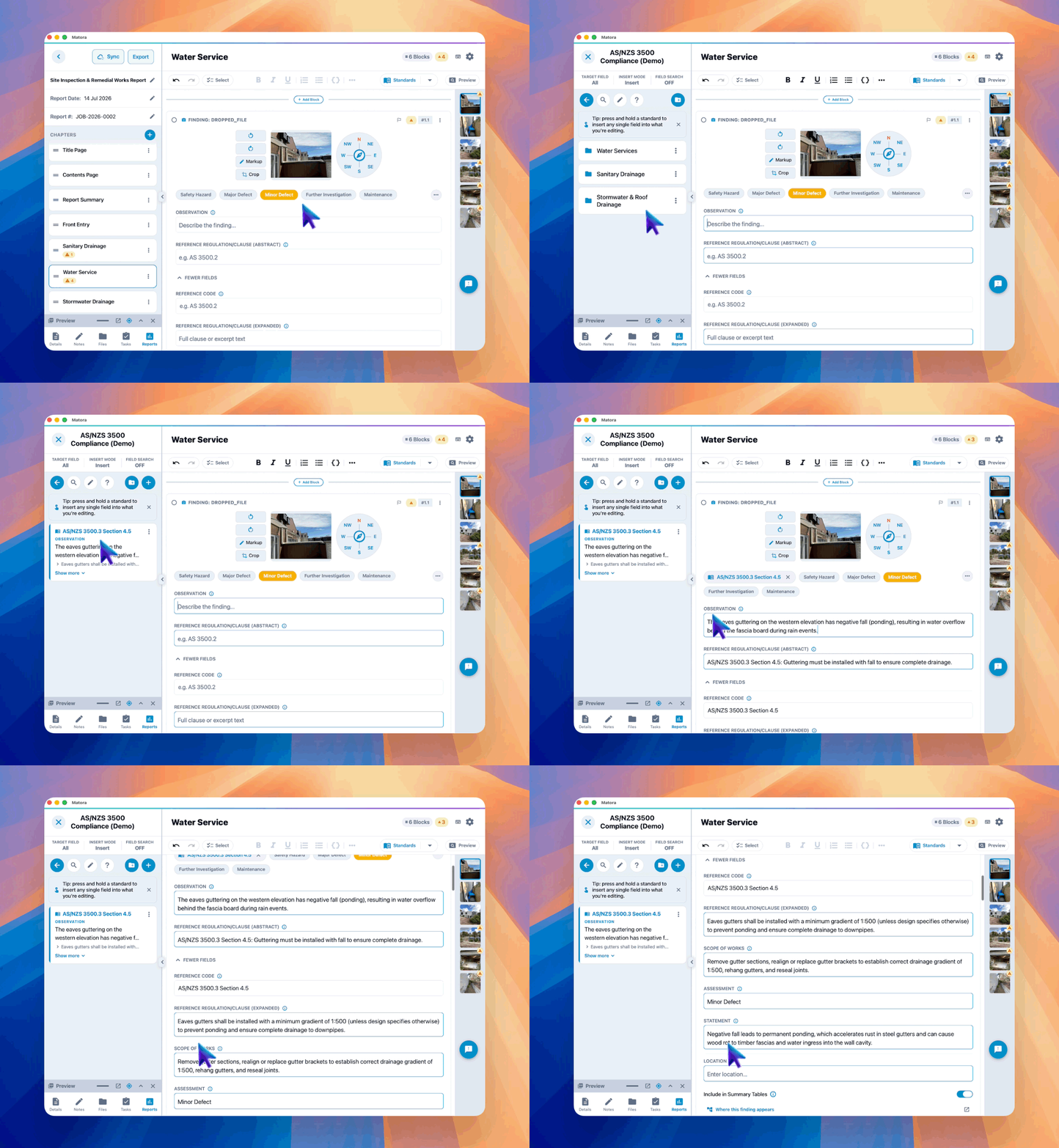
- Into a report: insert an entry while writing a finding and it fills the observation, reference, scope and remaining fields at once, applies its tags and offers its diagrams.
- Back into your library: write a good finding on site, then save it as a new entry so the next inspection starts from it instead of a blank block.
Once a finding is linked, both sides stay connected. If you reword the finding afterwards, Matora shows that the two have drifted apart and lets you decide which version to keep: update the finding from the library, or send your improved wording back to it.
Where to build it
In the app: Open Standards Library · Settings → Standards Library
- 1Open Settings → Templates & Libraries → Standards Library.
- 2Create a standards set, which groups related entries such as a code edition or a service you offer.
- 3Add categories inside the set to organise entries the way your team looks for them.
- 4Add your first entry and fill the fields your reports print.
- Building the library and using it while writing a report are both done on iPad or Mac. The iPhone app is for capture on site.
- Every plan includes building a library and using entries in findings.
- Professional adds the defects, costing and scope tables that collect linked findings into summary tables, and Business adds control over the columns those tables print.
- Owners and administrators can edit the shared library. Everyone else can read it, and an owner can give an individual team member permission to edit.
Start with a handful of entries for the issues you write up most often. A small, accurate library is used every day; a large one built in advance is usually searched once and abandoned.
For a guided tour of the screen itself, open Tutorials → Interactive tutorials → Standards Library. It walks through sets, categories and entries step by step inside the app.
Continue learning
- Build your standards library to create sets, categories and entries, and to understand the abstract and expanded reference fields.
- Use your standards while writing a report to insert an entry and choose how much of the finding it fills.
- Grow your library from real jobs to save findings back and keep linked findings in step with the library.
- Show standards in your report tables to choose what prints in your defects, costing and scope tables.