
Sync visits to your device calendar
See your scheduled Matora visits alongside the other appointments in your device calendar.
Updated
Matora includes its own calendar for viewing scheduled job visits. Calendar sync goes one step further by adding your assigned visits to the Calendar app on your device, so you can see work appointments alongside the rest of your schedule.
What calendar sync does
- Creates a separate Matora calendar on your device.
- Adds scheduled visits that are assigned to you.
- Includes the job address, visit time and any visit notes.
- Updates the calendar event when the scheduled visit changes in Matora.
- Updates the visit time in Matora when you move the event in your device Calendar and return to the app.
Device calendar sync is available on Professional and Business plans. Matora's in-app calendar can still be used without enabling this setting.
Turn on calendar sync
In the app: Open Calendar Settings · Settings → Calendar
- 1Open Settings → Jobs & Scheduling → Calendar.
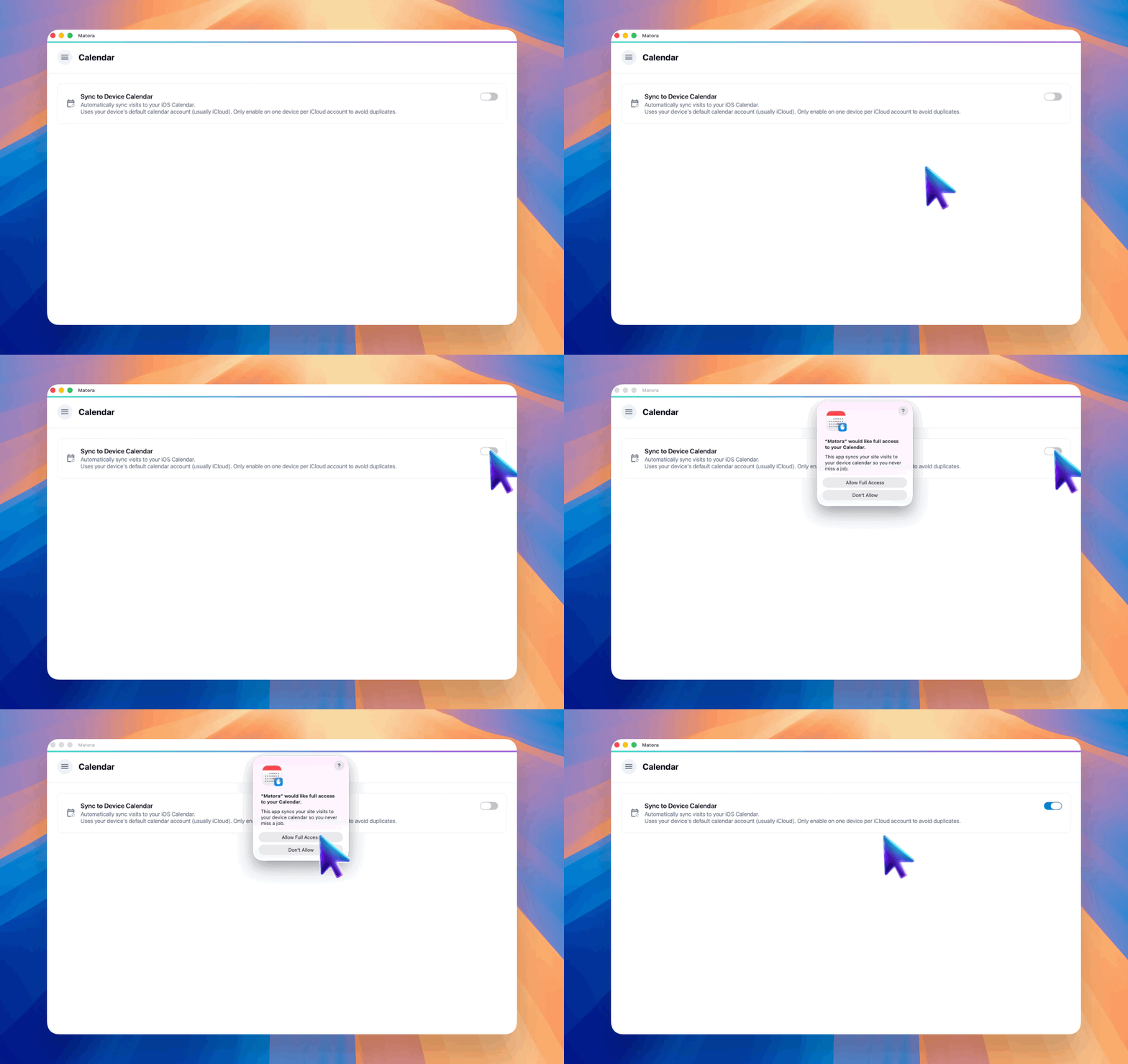
- 2Turn on Sync to Device Calendar.
- 3Allow calendar access when your device asks for permission.
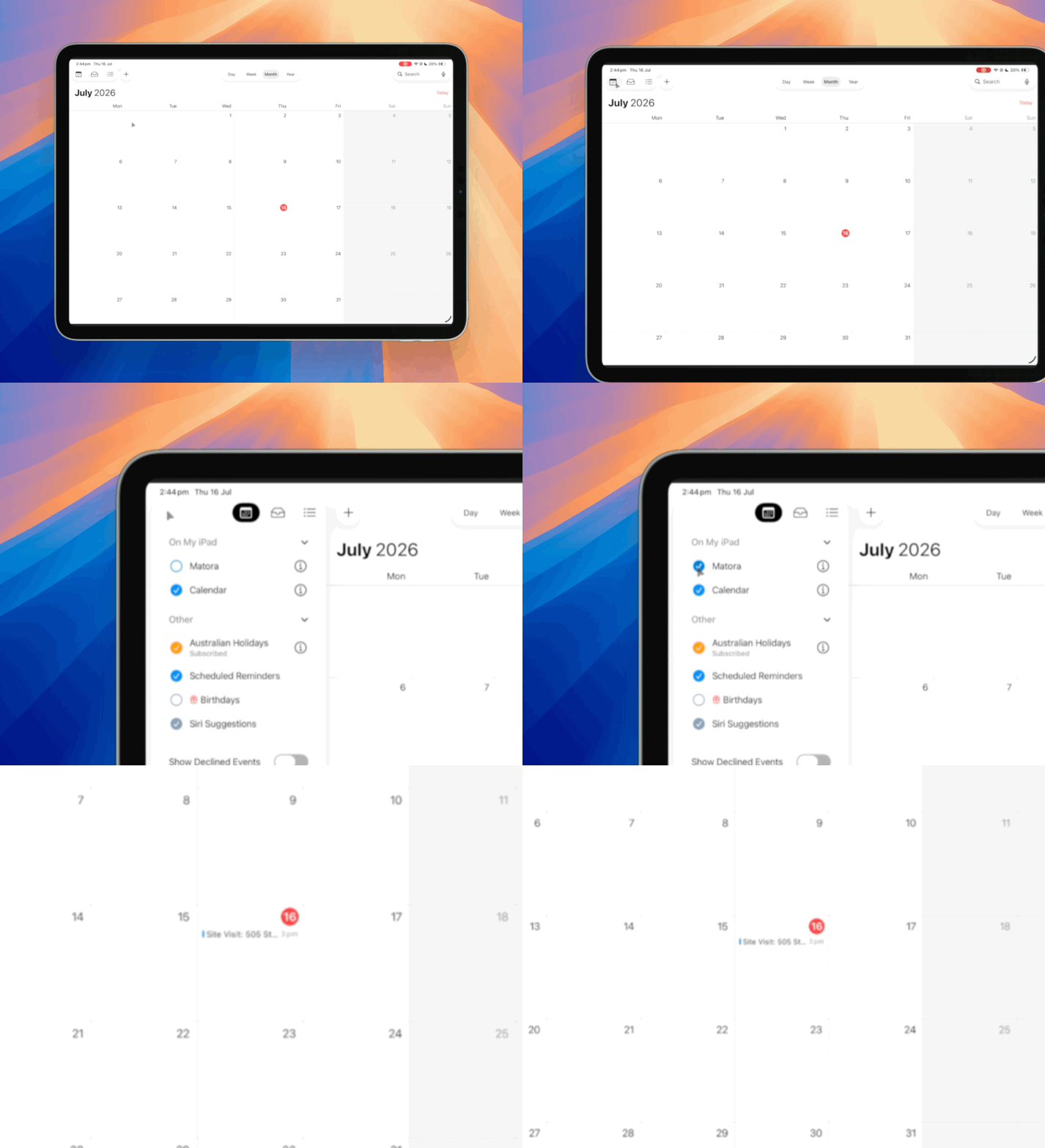
- 4Open the Calendar app on your device and make sure the Matora calendar is visible.
Enable calendar sync on only one of your devices. If it is already active elsewhere, Matora will ask whether you want to switch calendar syncing to the device you are currently using.
If a visit does not appear
Check that the visit has a scheduled date and time, that you are assigned to it, and that Matora still has permission to access your calendar. Only visits assigned to the signed-in user are added to that user's device calendar.
Turn off calendar sync
Turn the setting off at any time. Matora will let you keep the existing calendar and stop future updates, or remove the Matora calendar from the device. Neither option deletes your visits or job information from Matora.