
Set your report body text size
Adjust the default text size used throughout your reports and check the result in the live preview.
Updated
Body text size controls the everyday written content in your reports. Choosing a comfortable size helps clients read observations and supporting information while keeping the page layout balanced.
What does body text size affect?
The setting is used across report content, including text blocks, tables, captions, block numbers and other body text. Reference and backlink text is automatically displayed slightly smaller than the selected body size.
Report headers and footers have their own text settings. Changing Body Text Size does not change the typography used in those areas.
Choose a readable size
In the app: Open Body Text Settings · Settings → Report Body Text
- 1Open Settings → Report Design → Body Text.
- 2Move the Body Text Size slider between 10px and 16px.
- 3Use the live preview to compare the sample paragraph and reference text.
- 4Release the slider when you reach a size that is clear and comfortable to read.
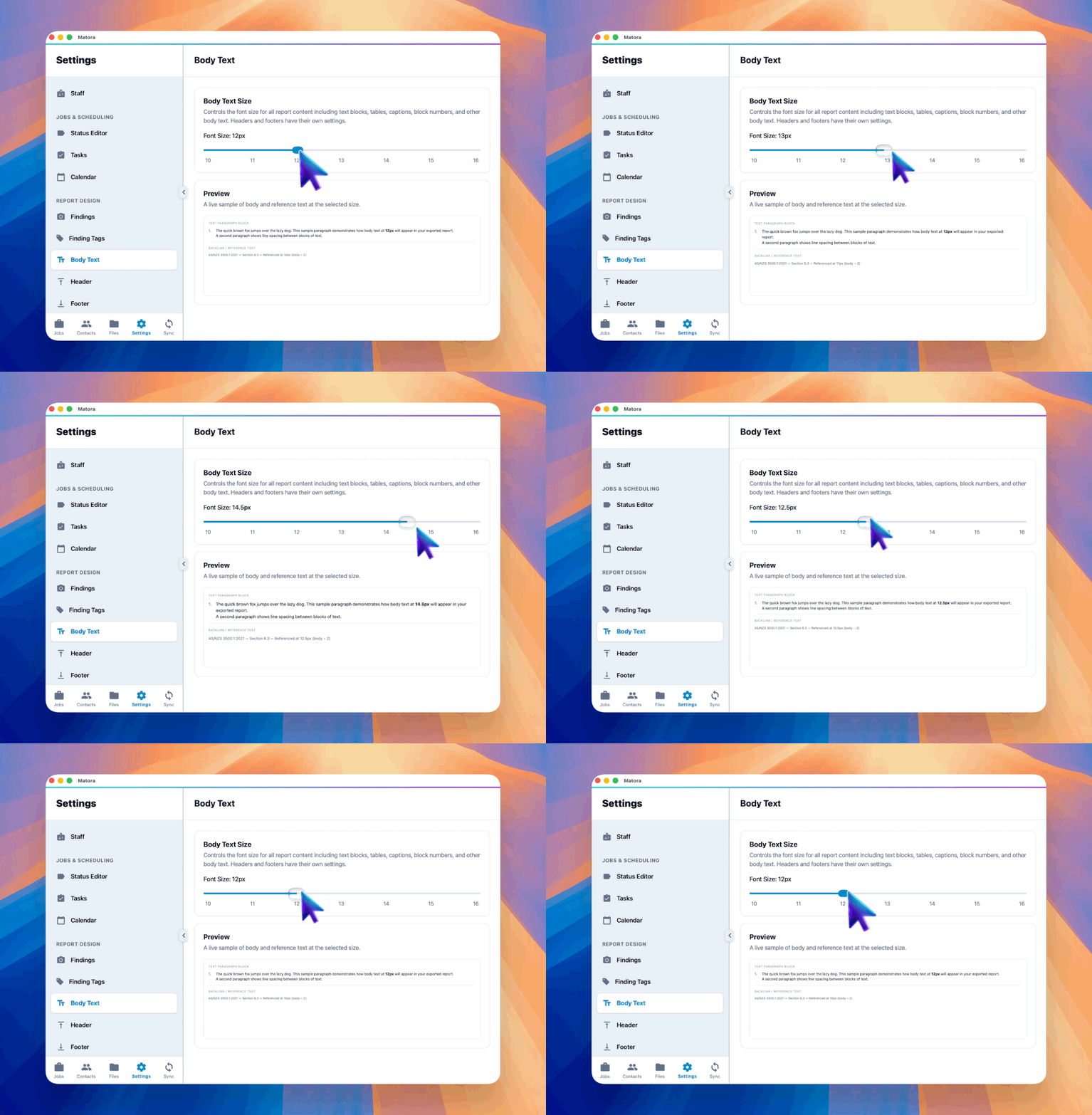
Start at 12px and check a realistic report before making a large change. Increase the size when readability is the priority; reduce it carefully when reports need to fit more information on each page.
Check a finished report
Preview or export a report containing paragraphs, tables and captions. Check that the text is comfortable to read and that longer content still fits the page without creating awkward breaks or crowded layouts.