
Set up automatic report numbering
Give new reports consistent numbers using a company format, the current year and an automatic counter.
Updated
Automatic report numbering gives every new report a consistent reference. You can combine fixed text with a sequential counter, the current year or your company name to create a format that suits your filing system.
Build your number format
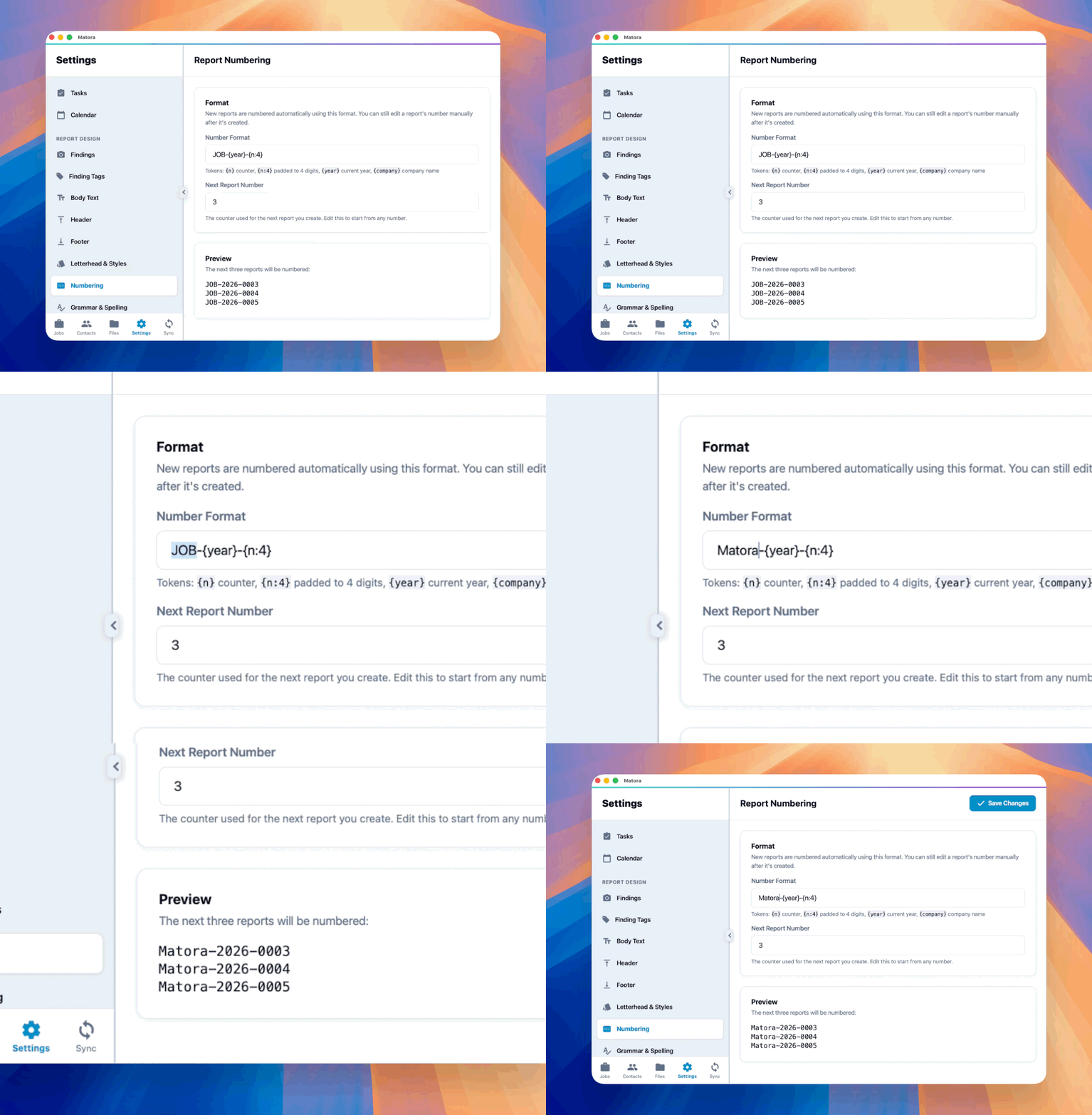
Enter ordinary letters, numbers and separators, then add tokens wherever Matora should insert changing information.
- {n} inserts the next counter without leading zeroes, such as 42.
- {n:4} pads the counter to four digits, such as 0042.
- {year} inserts the current four-digit year.
- {company} inserts your company name.
For example, RPT-{n:4} produces numbers such as RPT-0042, while {company}-{n:3} could produce Acme Inspections-042.
Choose the next report number
Next Report Number is the counter Matora will use the next time a report is created. After that report is created, the counter advances automatically for the following report.
In the app: Open Report Numbering · Settings → Report Numbering
- 1Open Settings → Report Design → Numbering.
- 2Enter the pattern you want to use under Number Format.
- 3Set Next Report Number to the counter that should be assigned next.
- 4Check the preview of the next three report numbers.
- 5Select Save Changes.
Only change Next Report Number when you intentionally want to start from a different counter. Setting it to a number already used by your company may create duplicate report references.
What happens to existing reports?
Changing the company format affects numbers assigned to new reports. It does not rename reports that have already been created. A report number can still be edited manually after the report is created when an individual job needs a different reference.
Choose a format that remains useful outside Matora. Including a short prefix and a padded counter, such as RPT-{n:4}, keeps report numbers easy to sort in folders, emails and accounting records.