
Invite and manage your team
Add staff to Matora, choose their roles, control what they can access and understand which plans support team collaboration.
Updated
Give each team member their own Matora login so they can work with the company’s jobs and reports. You can decide what each person is allowed to do, assign them to the work they need and keep their inspector details attached to their account.
What can your team do in Matora?
- Work together on company jobs and reports.
- Limit each person to the jobs they need to access.
- Choose a primary inspector so the correct name, contact details and licence number can appear in the report.
- Control access to exporting, email, contacts, company files, libraries and settings.
- Revoke someone’s access without removing their previous work or activity history.
Which plans include team management?
Team management is available on the Professional and Business plans. Free and Solo are designed for one user and cannot invite additional staff.
Professional currently includes 3 users in total — the owner plus two team members. Business includes 5 users in total. Extra seats can be added to either plan. Your current allowance is shown at the top of the Staff screen.
In the app: Open Subscription & Billing · Settings → Subscription & Billing
Open Subscription & Billing to compare the available plans, see current pricing or add more seats to an eligible plan.
Invite a team member
In the app: Open Staff · Settings → Staff
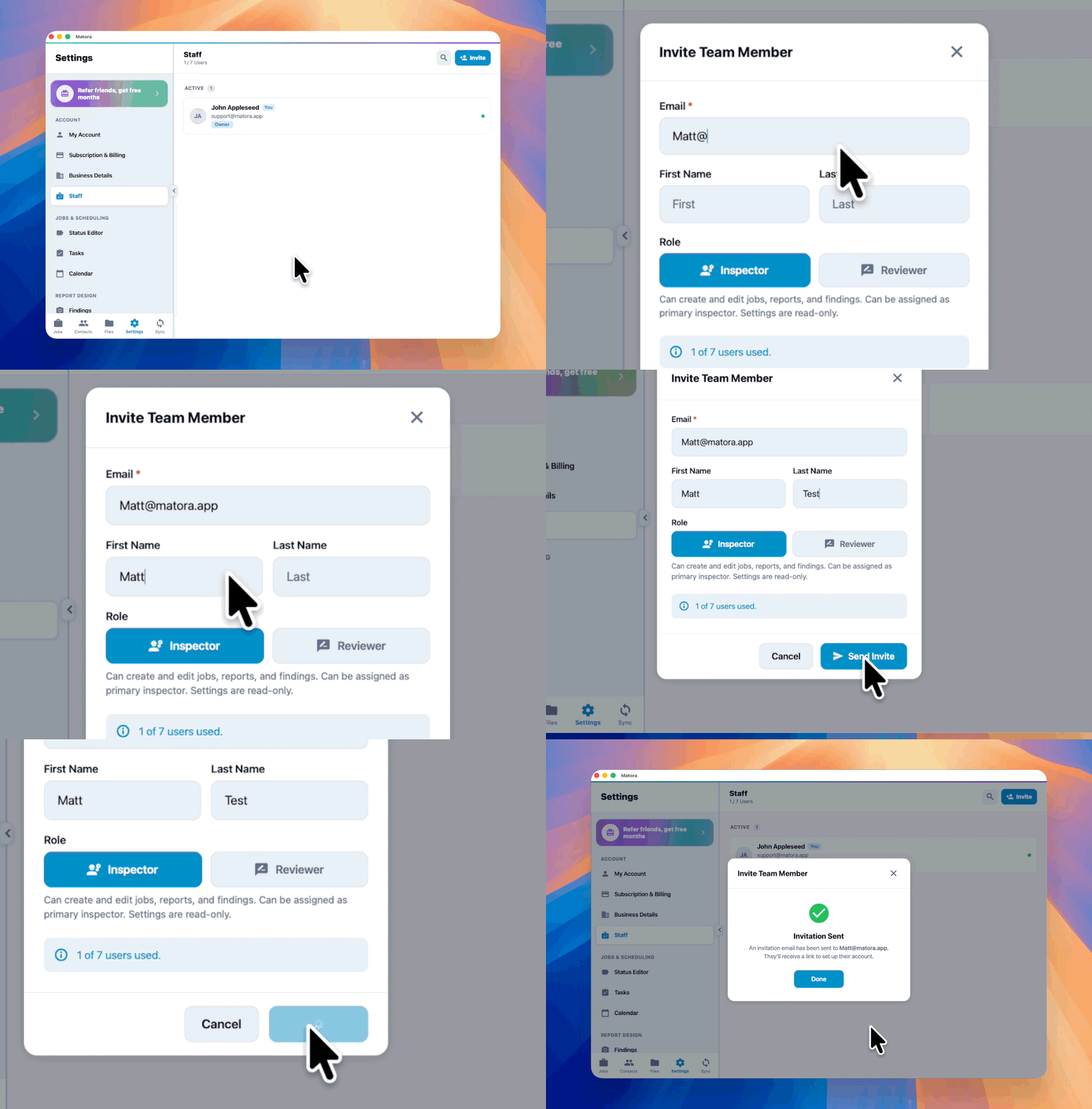
- 1Open Settings → Account → Staff.
- 2Select Invite.
- 3Enter the person’s email address and, optionally, their first and last name.
- 4Choose whether they should begin as an Inspector or Reviewer.
- 5Select Send Invite. They will receive an email with a link to set up their account.
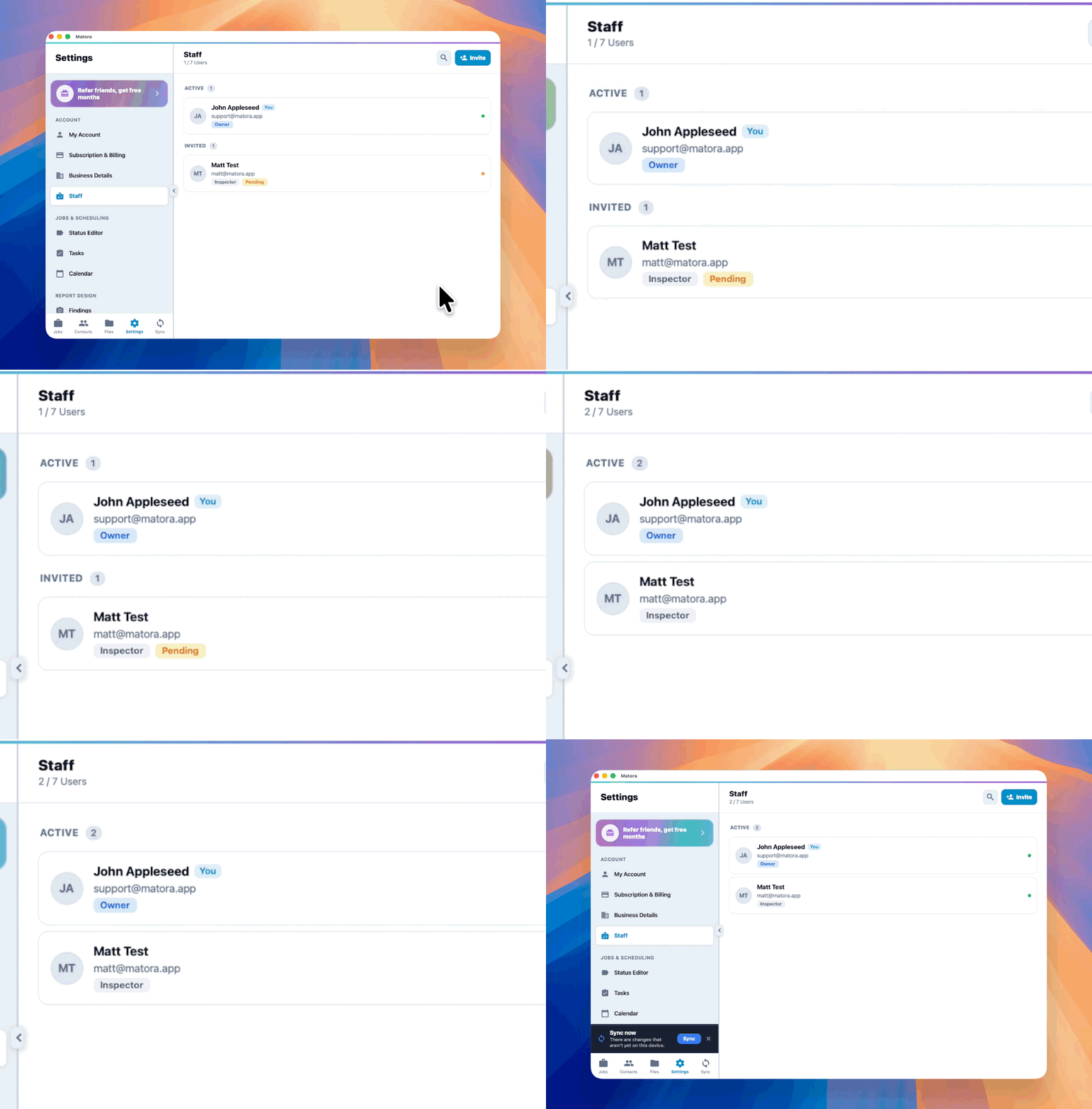
The person appears under Invited until they accept. Their account moves to Active after they finish setting it up.

Choose the right role
- Inspector: intended for team members who work on jobs, reports and findings. Inspectors can be assigned to jobs and selected as the primary inspector.
- Reviewer: intended for someone who reviews and finalises reports without creating or editing jobs.
A role gives the person a sensible starting point. Owners and administrators can then open the staff member and adjust their individual permissions.
Control what each person can access
Open an active staff member to update their contact or licence details and review their permissions. Permissions are grouped into jobs and reports, job tasks, sharing and export, contacts, files and storage, libraries and templates, and settings access.
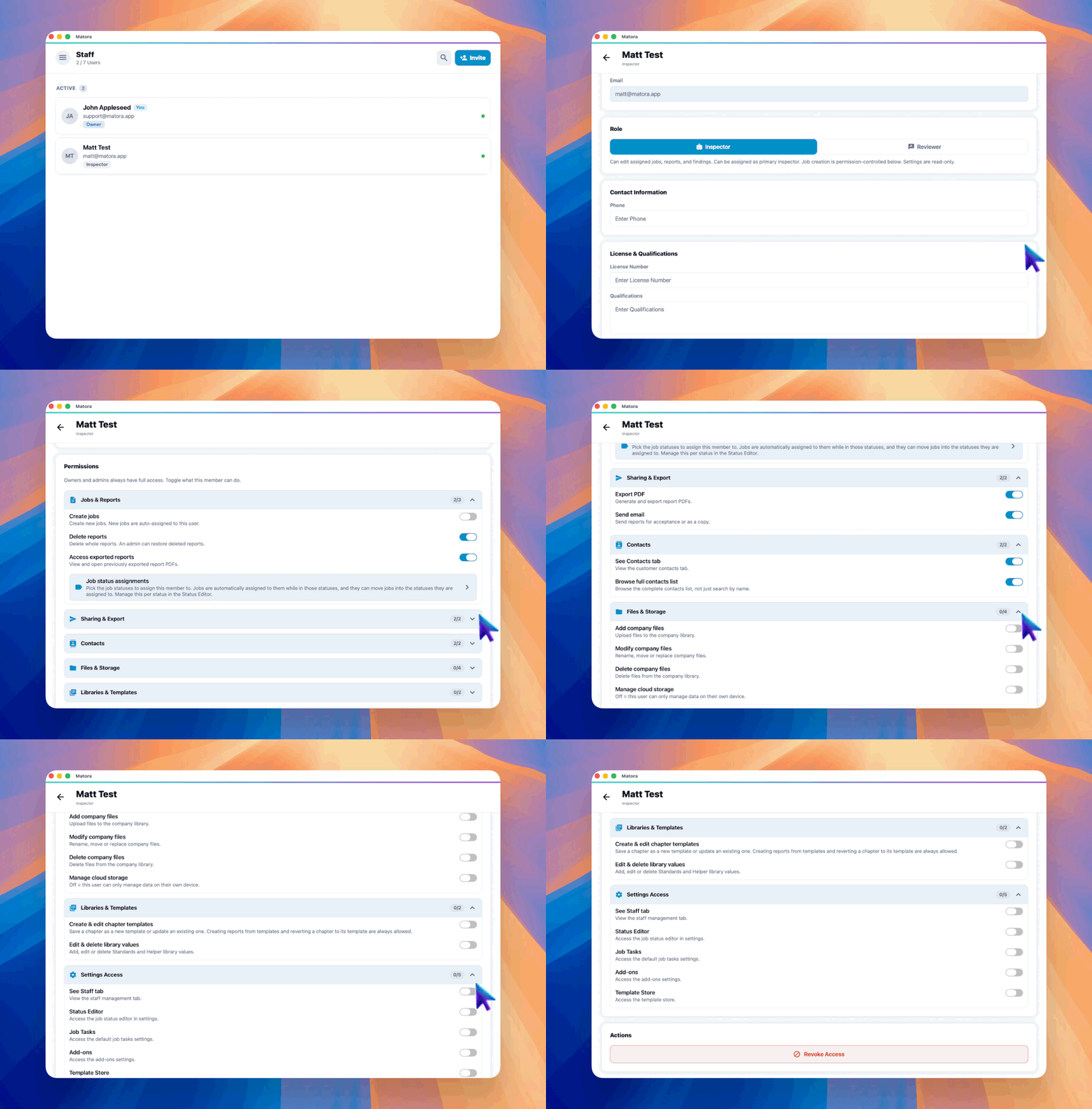
Owners and administrators always have full access. Review permissions carefully before giving someone access to company files, exporting, email or administrative settings.
Assign staff to the right work
Adding someone to the company does not mean they need access to every job. The checkbox and star in Manage Job Access have different purposes.
- Checkbox — Job access: allows that person to open the job and sync its information to their devices.
- Star — Primary inspector: chooses the inspector whose name, contact information and licence number are used as the primary inspector details in the report.
Selecting the star automatically gives that inspector access to the job. Only one person can be the primary inspector, and Reviewer accounts cannot be selected for this role.
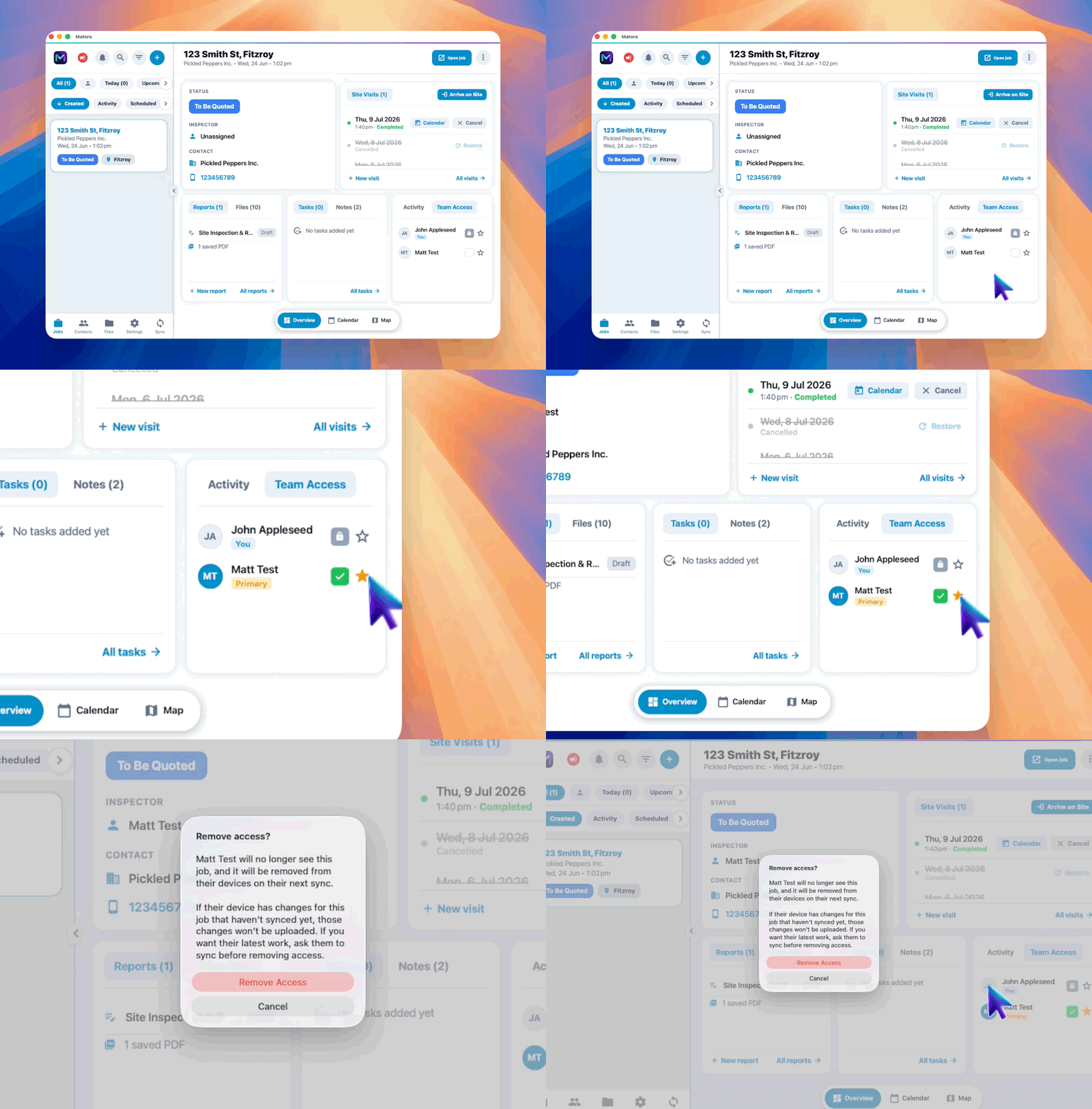
Before removing someone’s job access, ask them to sync any recent work. The job is removed from their devices on the next sync, and changes that have not synced cannot be uploaded afterwards.
Remove or restore access
Delete an invitation if it was sent to the wrong person. For someone who has already joined, use Revoke Access to prevent them from opening company data. Revoked users remain listed so their previous work stays connected to the correct person, and their access can be restored later if needed.