
Customise your report footer
Add company details, job information, page numbers and branding to the bottom of your report pages.
Updated
Report footers appear at the bottom of your report pages. They give each page a consistent finish and can display your logo, company details, job information and page numbers.
What does a report footer look like?
A footer sits below the main report content. It can combine fixed text, such as your company name, with placeholders that automatically insert information from the current job or report.
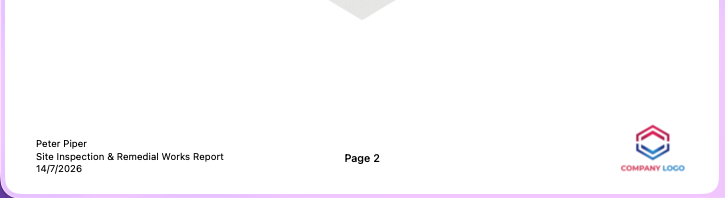
Placeholders such as {{job_address}} and {{page_number}} update automatically, so you do not need to type different details into every report.
Customise your footer
- 1Open Settings → Report Design → Footer.
- 2Choose whether to include your business logo. You can use the company logo or upload a footer-specific version.
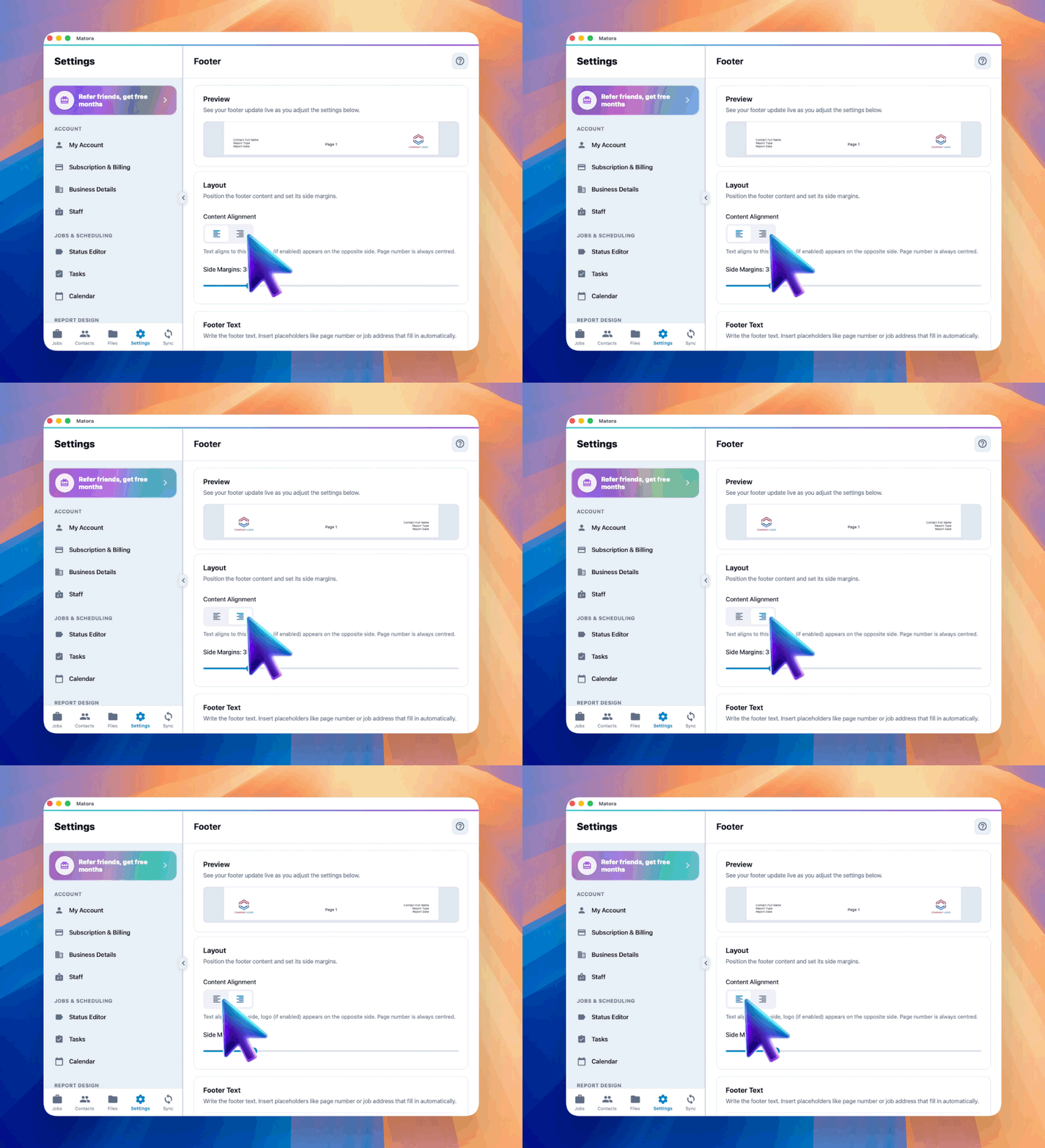
- 3Set the content alignment and side margins so the footer fits comfortably within the page.
- 4Enter and format the footer text, then use the placeholder button to insert details such as the company name, job address or page number.
- 5Use the live preview to check the logo, text and spacing together.
Keep the footer short and easy to read. Company details, the job address and page number are usually more useful here than long disclaimers.
Check the finished report
Preview or export a report after making changes. Check that the footer is readable, does not overlap the page content and works with both portrait and landscape pages used in your reports.