
Customise your job workflow
Create and organise job statuses, choose useful sidebar filters and automate job access or device storage as work progresses.
Updated
Job statuses show where each job is in your workflow — from the first enquiry through to inspection, reporting and completion. A clear status list makes it easier to see what needs attention and move work through the business consistently.
Plan a workflow that matches your business
Use a small number of meaningful stages that describe what should happen next. For example:
- Enquiry — new work that still needs to be reviewed.
- Booked — an inspection or site visit has been arranged.
- On Site — the inspection is underway.
- Report in Progress — site work is complete and the report is being prepared.
- Review — the report is ready to be checked.
- Sent or Complete — the report has been delivered and the job is finished.
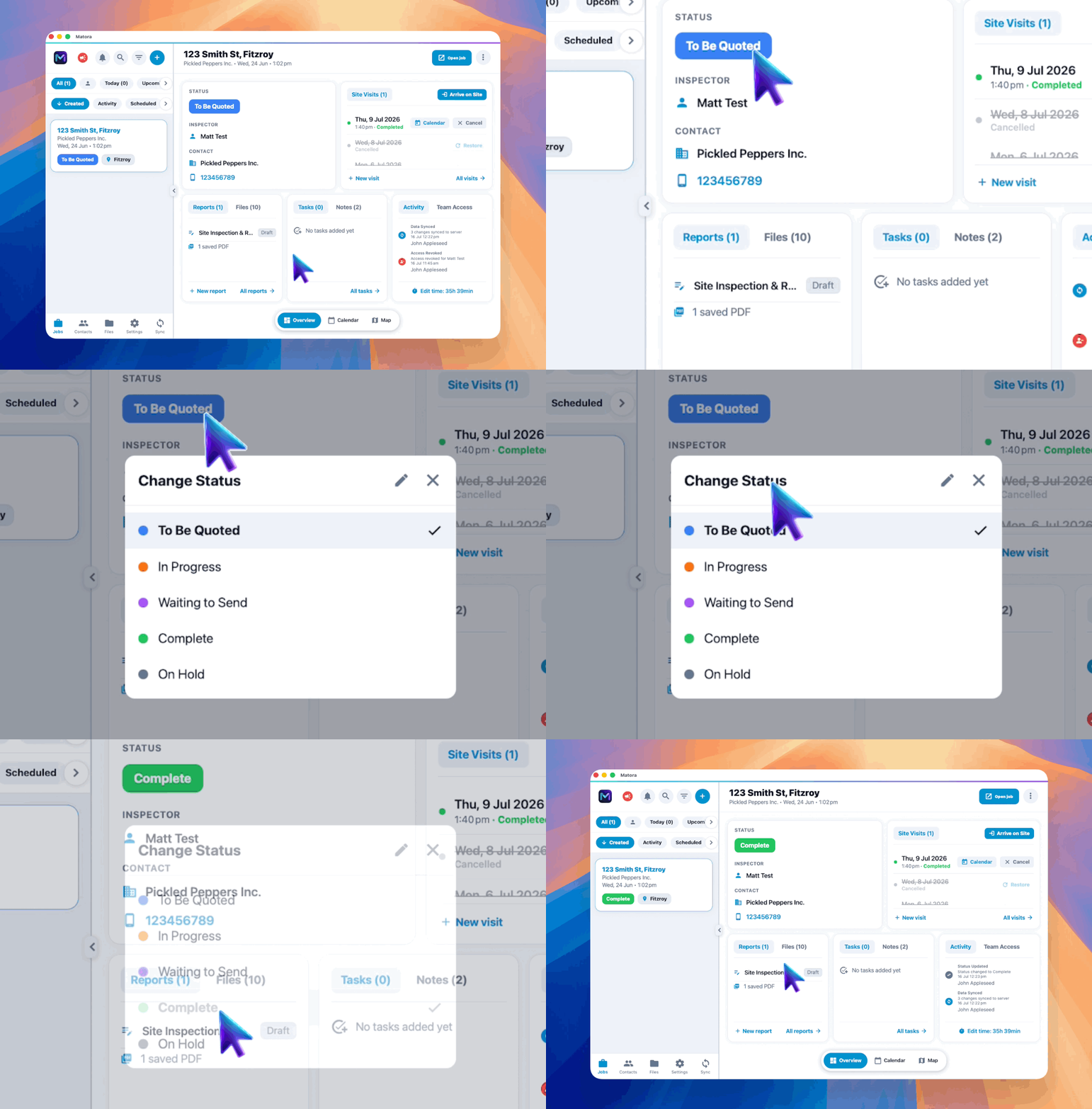
Create and organise statuses
In the app: Open Status Editor · Settings → Status Editor
- 1Open Settings → Jobs & Scheduling → Status Editor.
- 2Select Add Status.
- 3Give the status a short, clear name and choose a colour that helps distinguish it from the surrounding stages.
- 4Select Save.
- 5Drag statuses into the order jobs normally move through your workflow.
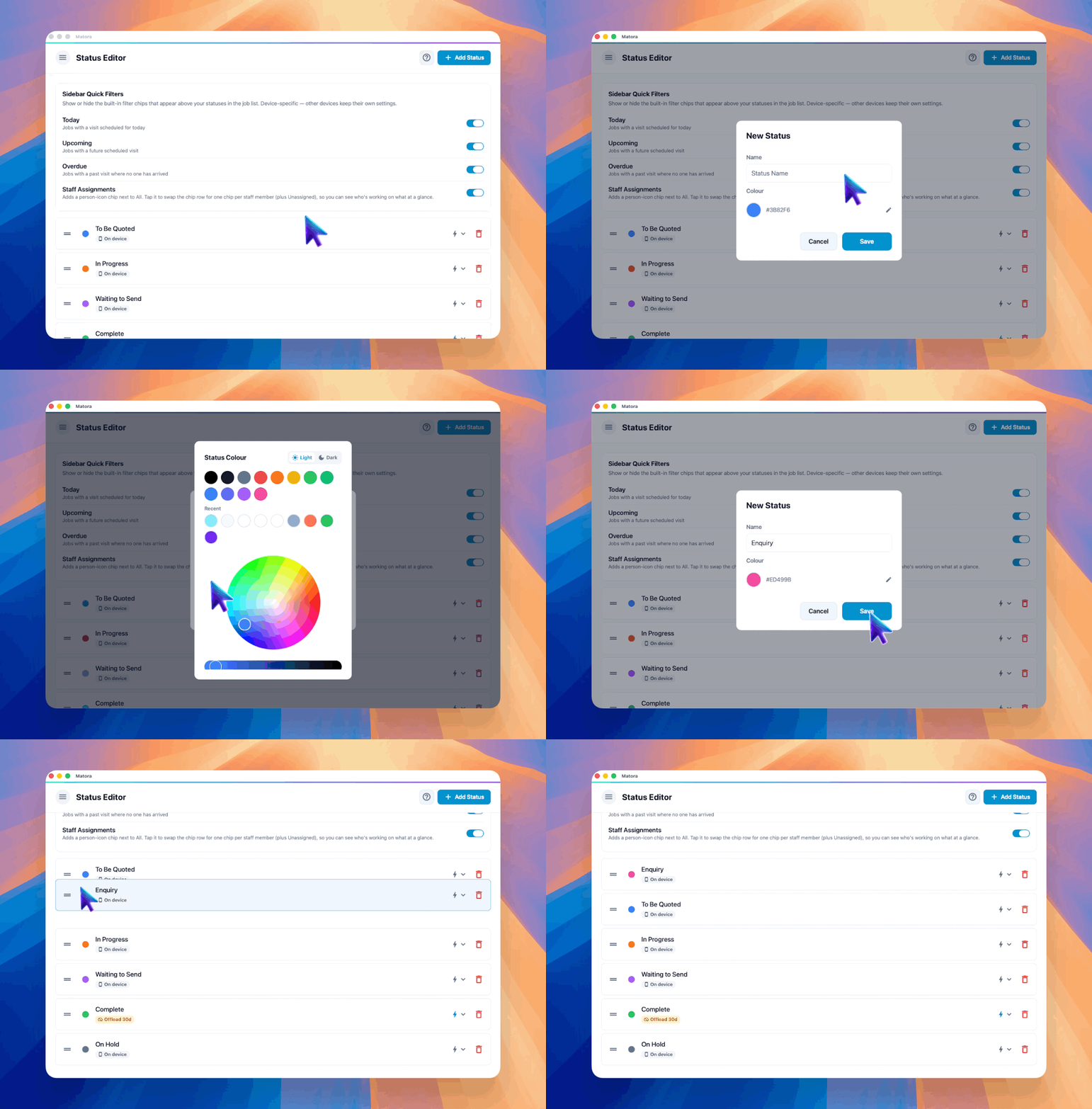
The order set here is also used in status menus and filters throughout Matora. Statuses with a padlock are system defaults: you can rename or recolour them, but they cannot be deleted.
Choose your sidebar quick filters
The quick filters appear above your statuses in the job list. They help surface time-sensitive work without adding more workflow stages.
- Today: jobs with a visit scheduled for today.
- Upcoming: jobs with a future scheduled visit.
- Overdue: jobs with a past visit where no one has arrived.
- Staff Assignments: lets owners and administrators filter the job list by team member or show unassigned work.
Quick-filter visibility is saved separately on each device. Changing these switches organises your own job list without changing another team member’s layout.
Use status automations when needed
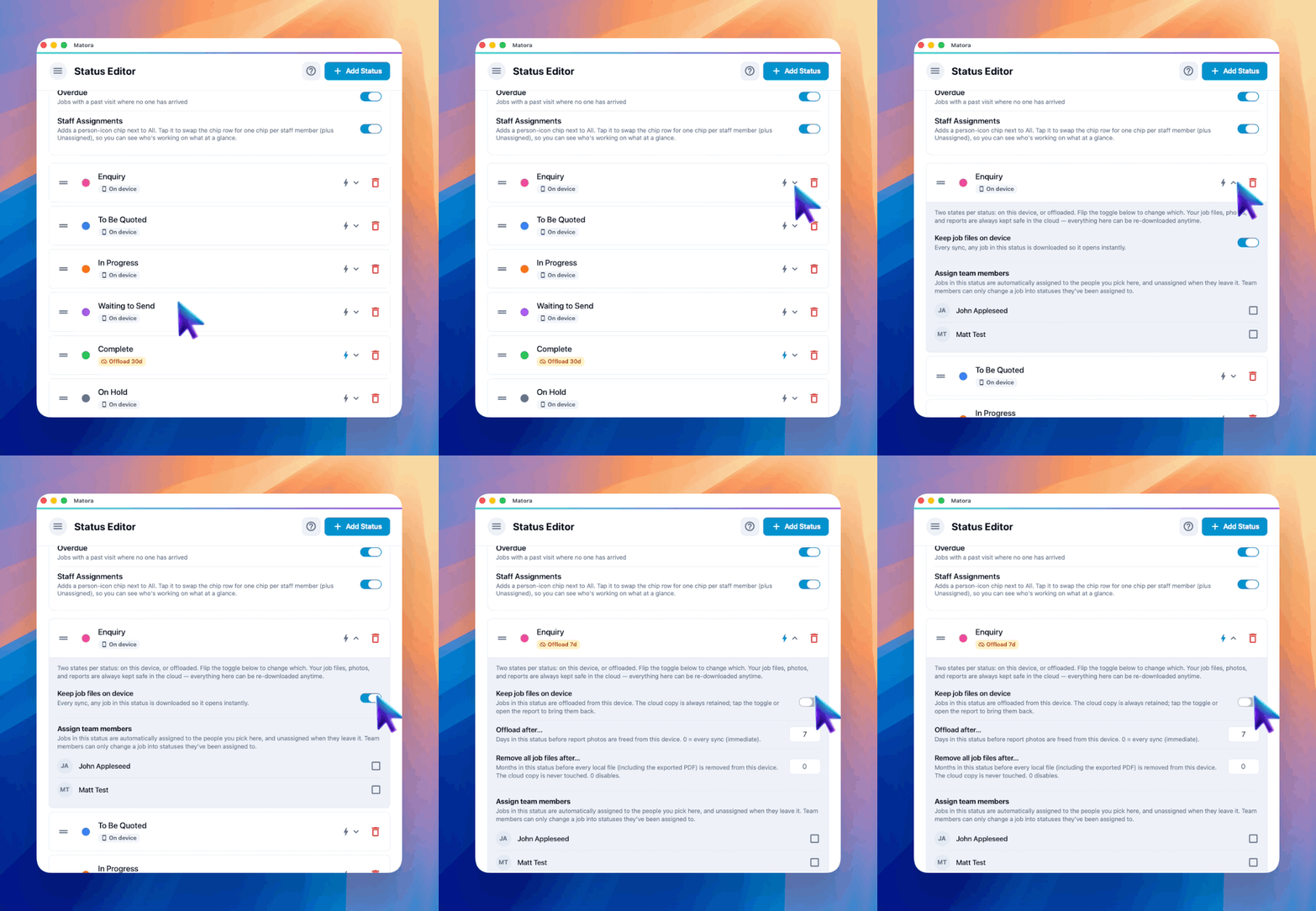
Select the bolt beside a status to open its optional automation controls. These controls can manage which job files remain downloaded on the current device as work moves through the workflow.
- Keep job files on device: downloads the files required by jobs in this status so they are ready to open.
- Offload after: frees downloaded report photos after the job has remained in this status for the chosen number of days. Entering 0 offloads them during each sync.
- Remove all job files after: removes every local file for the job, including its exported PDF, after the chosen number of months. Entering 0 disables this removal.
Storage automations affect only the current device and should be used with cloud sync active. They remove local copies to free space; files that have synced remain available from the cloud and can be downloaded again.
Automatically assign jobs to your team
Owners and administrators can allocate team members to individual statuses. When a job enters that status, Matora automatically gives the selected people access. When the job leaves, access granted by the status is removed.
Team allocation is designed for Professional and Business workspaces with multiple users. It also controls which statuses a non-administrator can move jobs into.
In the app: Open Staff · Settings → Staff
Add and configure your team in Staff first. Then return to the Status Editor to connect people to the stages they are responsible for.
- 1Open the bolt controls beside the status you want to allocate.
- 2Under Assign team members, select everyone who should receive jobs in this stage.
- 3Repeat this for the other stages each person is allowed to move jobs into.
- 4Use the Staff Assignments quick filter in the job list to check who is working on what.
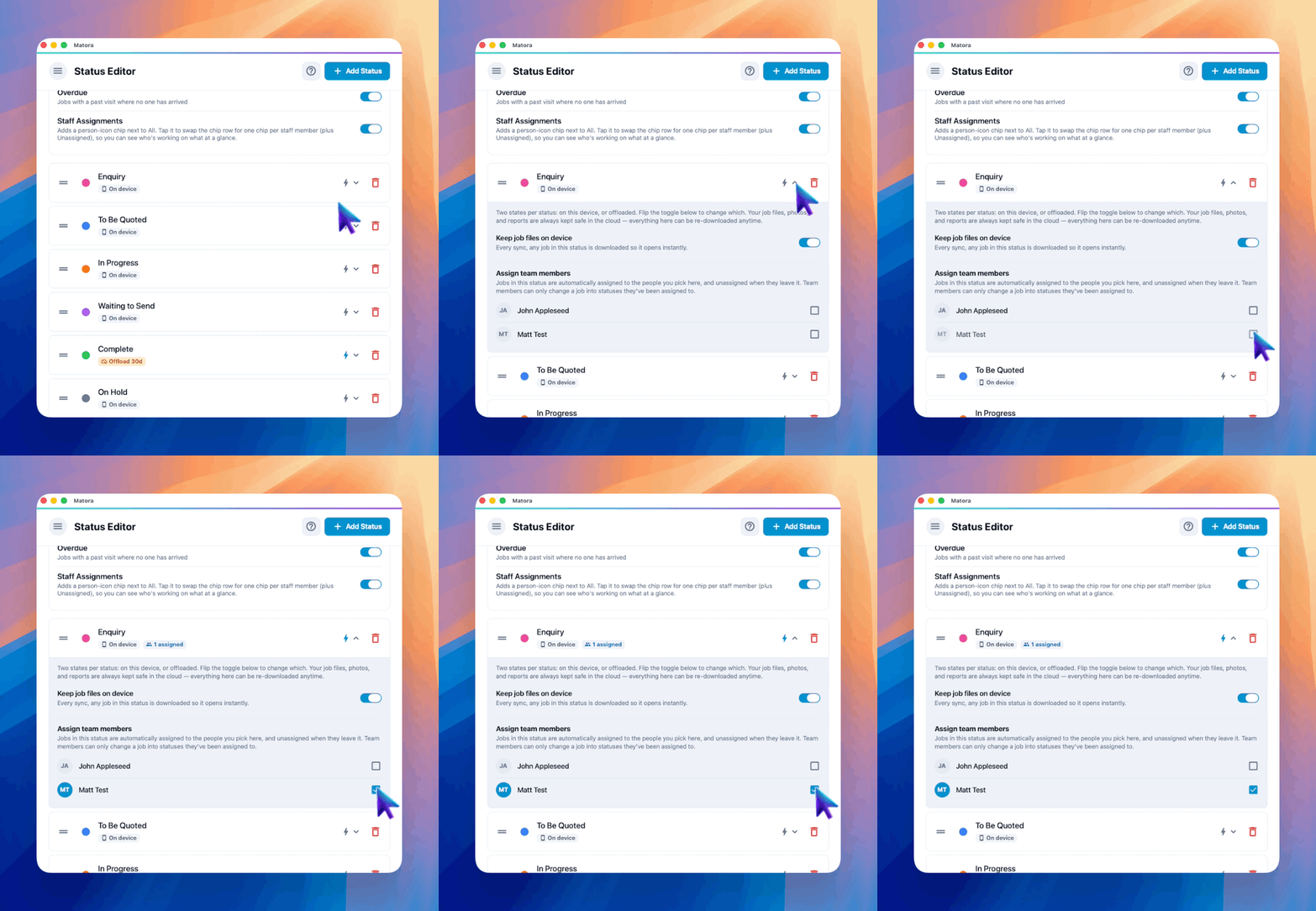
Access that was granted manually from a job remains in place when the job changes status. Matora removes only the access that was added automatically by the previous status.