
Customise report headers
Learn where chapter headers appear and style their text, logo, separator and spacing to match your company branding.
Updated
Report headers show the chapter name at the top of each section, helping readers understand where they are in the report. You can style them to match your company branding and choose whether they appear only on the first page or repeat throughout the chapter.
What does a report header look like?
The header uses the chapter's name—for example, Inspection Summary, Findings or Recommendations. It sits above the chapter content and is separate from your title page, letterhead and footer.
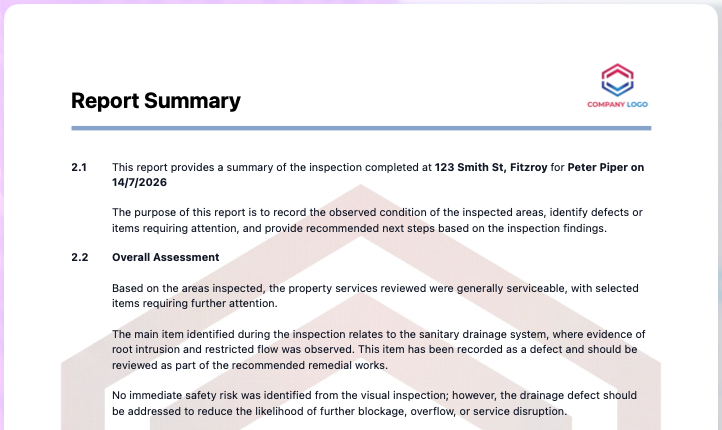
Customise your headers
In the app: Open Header Settings · Settings → Report Headings
- 1Open Settings → Report Design → Header.
- 2Choose whether the header appears on the first page only or repeats on every page.
- 3Adjust the alignment, font size, weight and colour to suit your branding.
- 4Optionally add your business logo or a separator line.
- 5Use the spacing controls and live preview to balance the header with your letterhead and report content.
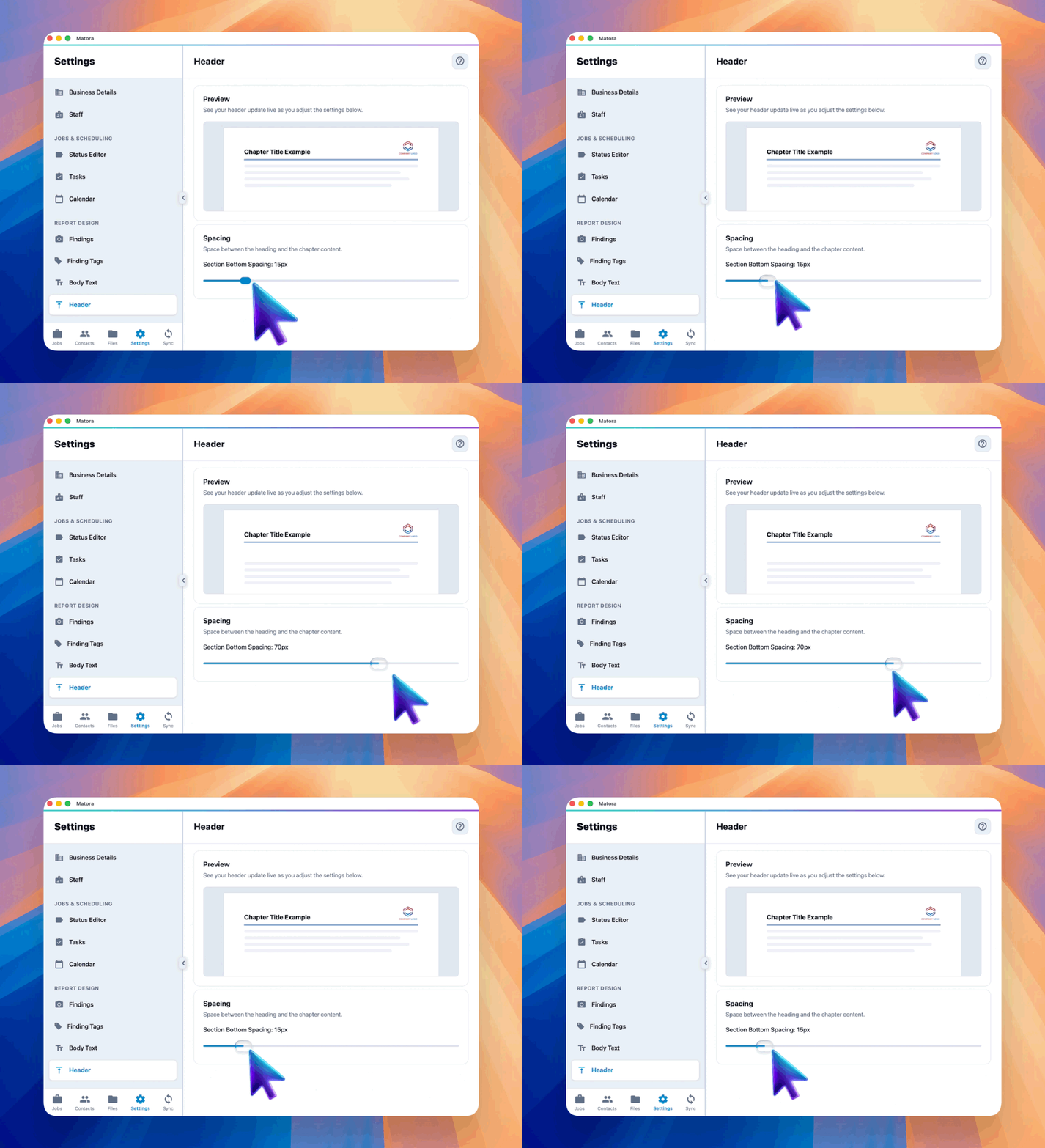
Keep the header simple when your letterhead already contains a prominent logo or coloured band. The chapter name should remain easy to read.
Check the finished report
Preview or export a report after making changes. Check that the header is easy to read, works with your letterhead and leaves enough space before the chapter content begins.