Create reusable job checklists
Build task groups that automatically give new jobs the right checklist, or import tasks when they are needed.
Updated
Reusable task groups help your team follow the same process on every job. Set up a checklist once, then add it automatically or import it when needed instead of recreating the same tasks each time.
How task groups work
A task group is a reusable checklist template stored in Settings. When its tasks are added to a job, Matora creates a separate working copy that can be completed, edited, flagged or assigned without changing the original template.
- Use one group for your standard checklist, such as Every Job.
- Create specialised groups for different services, inspections or report types.
- Add a title, optional instructions and a flag to each task.
- Arrange tasks in the order your team should normally complete them.
Create a task group
In the app: Open Tasks · Settings → Default Job Tasks
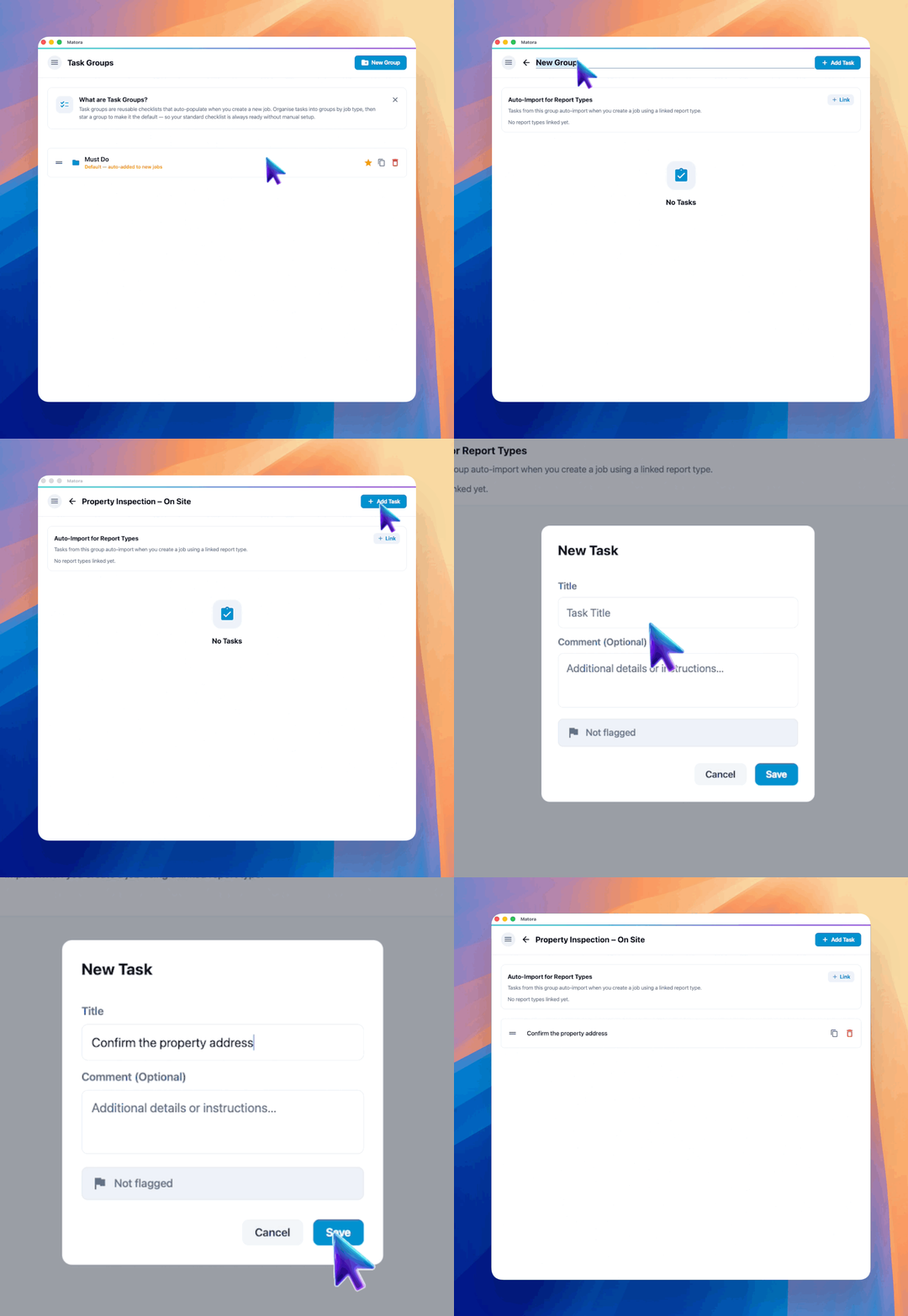
- 1Open Settings → Jobs & Scheduling → Tasks.
- 2Select New Group, then open the new group.
- 3Select the group name at the top to rename it.
- 4Select Add Task and enter a clear task title.
- 5Add an optional comment when the person completing it needs more detail.
- 6Turn on Flagged when the task should begin as a priority item after it is imported.
Keep task titles short and action-focused, such as Confirm site contact, Photograph compliance plate or Back up photos before leaving. Put longer instructions in the optional comment.
Organise and reuse tasks
Drag tasks into the order they should normally be completed. You can edit a task by selecting it, duplicate similar tasks with the copy button, or remove tasks that are no longer part of the process.
Choose how tasks are added to jobs
Matora provides three ways to turn a reusable task group into working tasks on a job.
- Default group: automatically adds the group to every newly created job.
- Linked report template: automatically adds the group when a report is created from a linked report template on a job.
- Manual import: lets you choose a group and select individual tasks for an existing job.
Set the default checklist
Return to the task-group list and select the star beside the checklist that should be added to every new job. Only one group can be the default at a time.
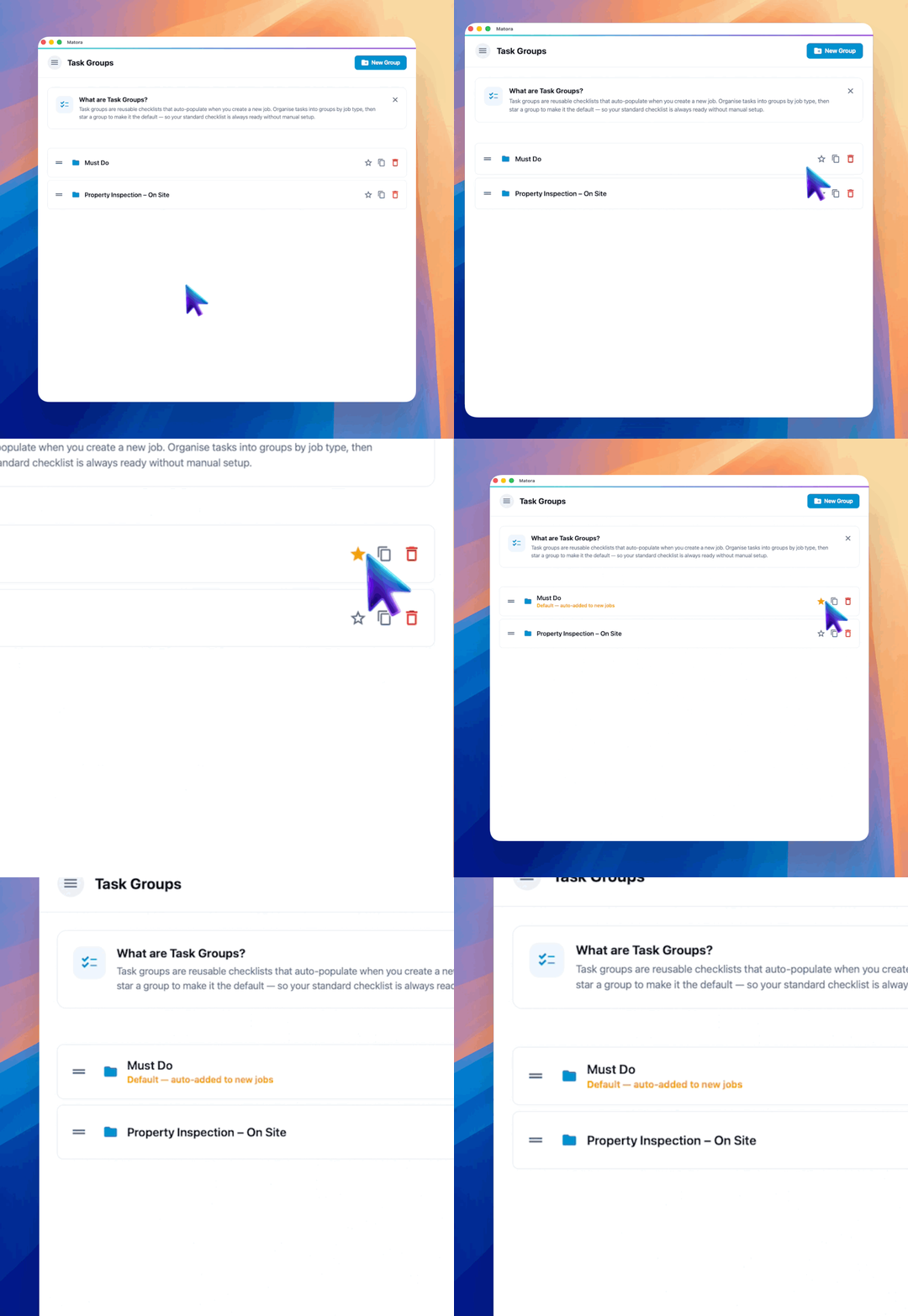
The default affects new jobs only. Changing it does not replace tasks that have already been added to existing jobs.
Link tasks to report templates
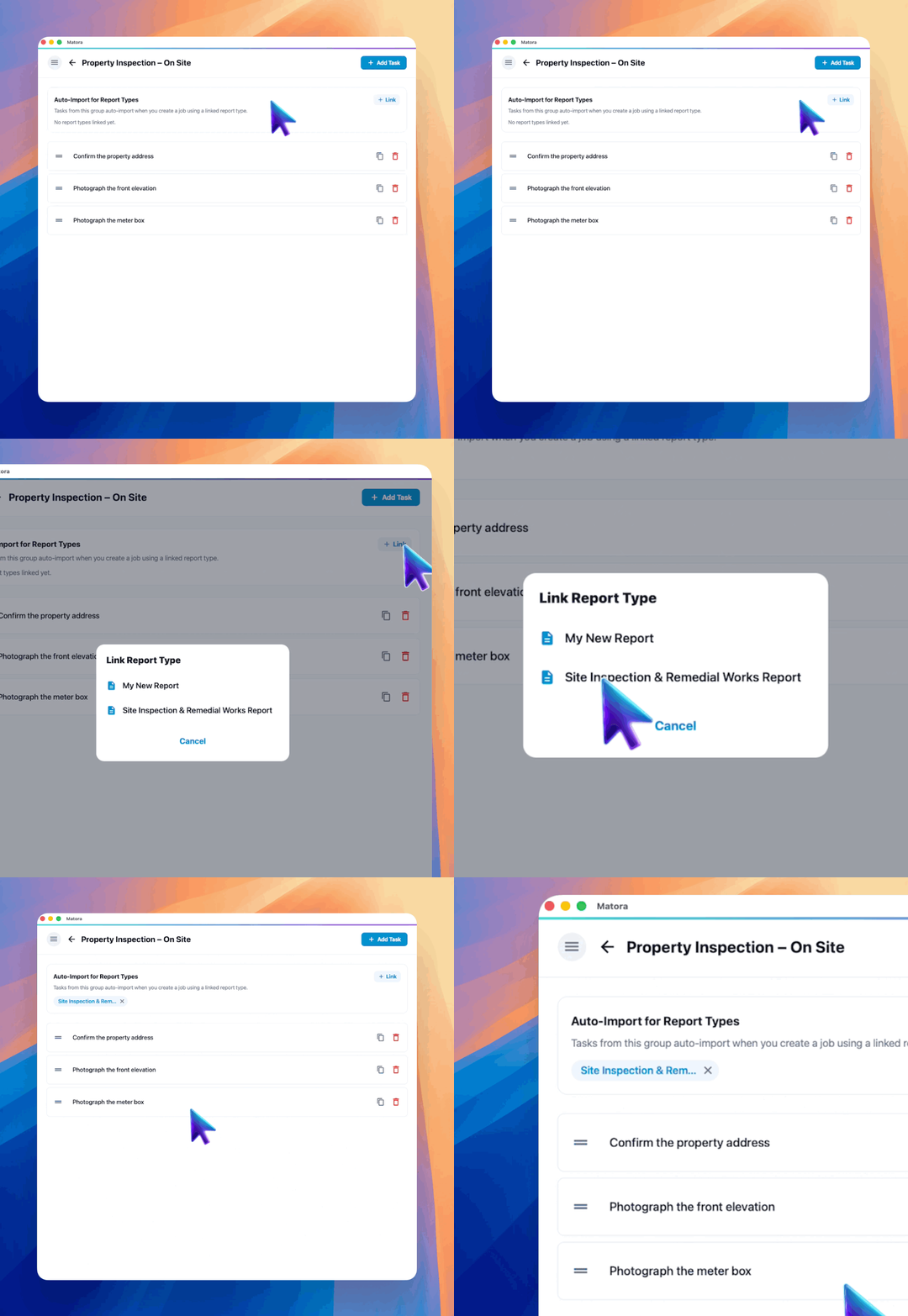
Inside a task group, use Auto-Import for Report Types to link the checklist to one or more report templates. The tasks are added when a report using one of those templates is created on a job.
- 1Open the task group you want to link.
- 2Under Auto-Import for Report Types, select Link.
- 3Choose the report template that should use this checklist.
- 4Repeat to link the group to any other relevant report templates.
Use the default group for tasks required on nearly every job. Use report-template links for specialised checks that only apply to particular kinds of work.
Import tasks into an existing job
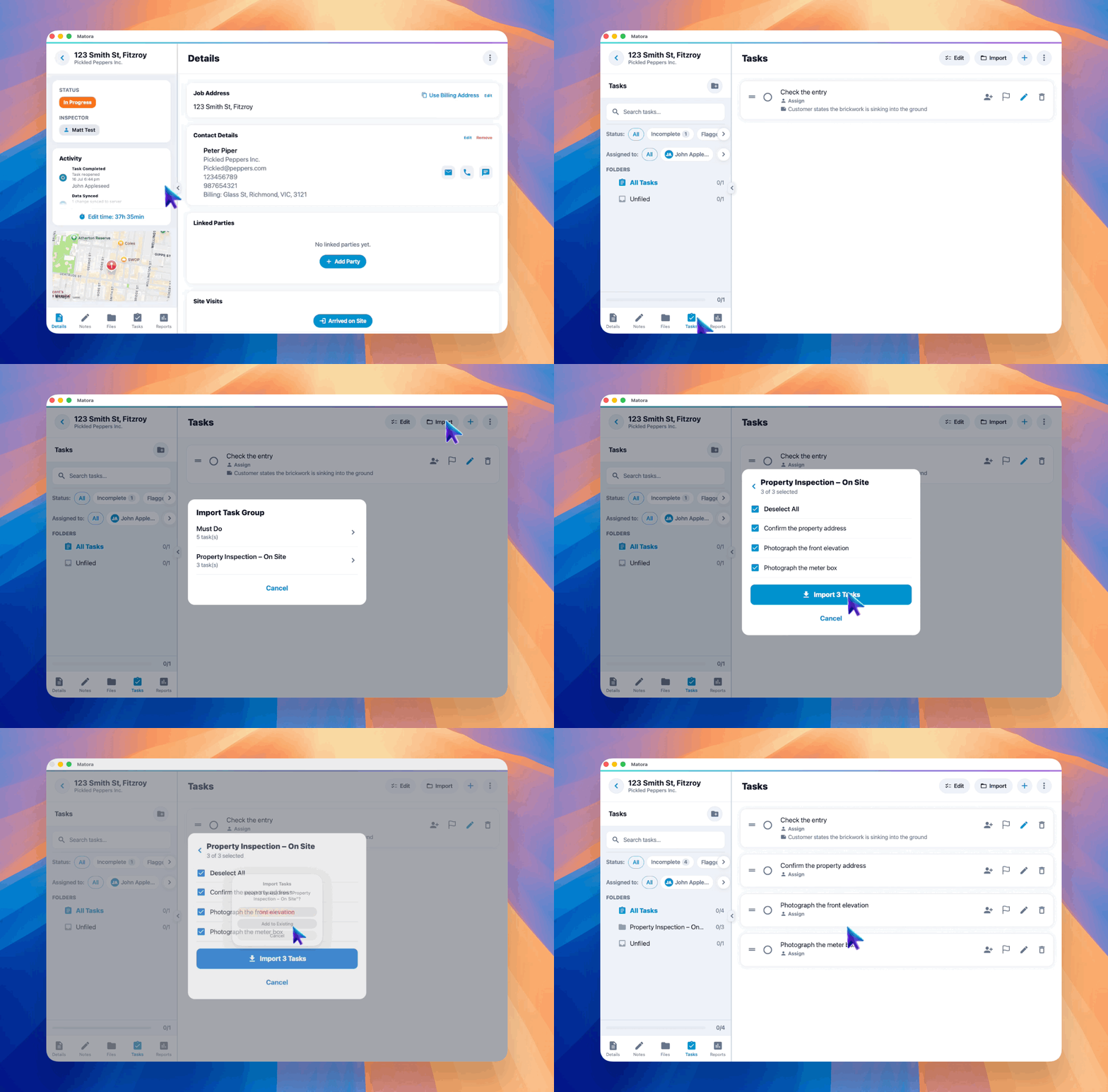
From the Tasks area inside a job, choose Import from Templates. Select a task group, choose all or only some of its tasks, then add them to the current list. If the job already has tasks, you can append the selection or replace the existing list.
Work through tasks on the job
Once imported, tasks belong to that job and can be completed or updated without changing the reusable task group in Settings. Use the full Tasks area on iPad to organise, assign, reorder, import and manage the checklist.
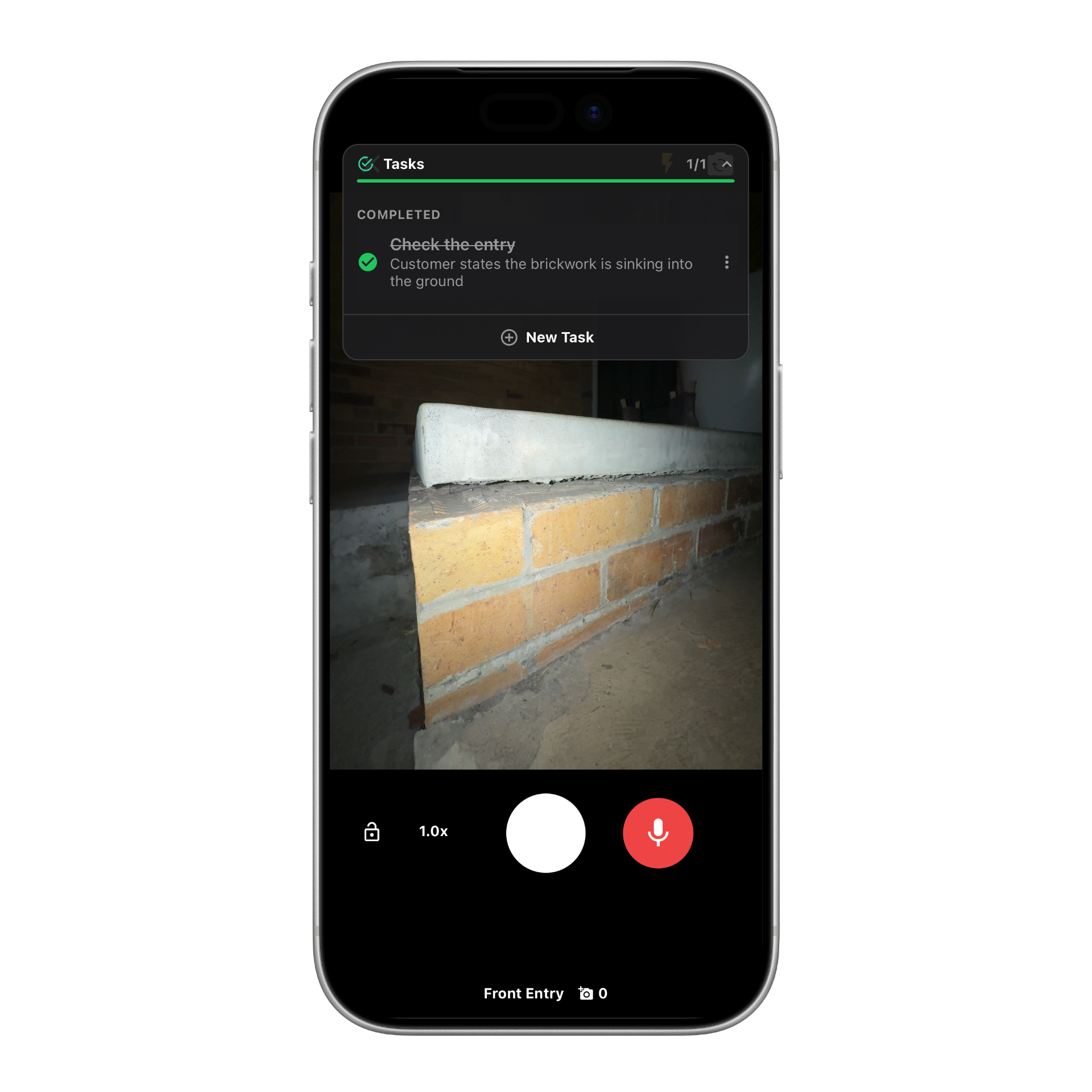
On iPhone, job tasks are also available from Job Details and directly inside the camera. This makes it easy to check the list, complete work and continue capturing photos on site.