
Create letterheads and page styles
Bring your existing letterhead into Matora or create reusable page styles using images, logos, colours and opacity.
Updated
Letterhead styles control the background design of your report pages. They let you bring your existing branding into Matora and reuse it consistently across title pages, report chapters and landscape pages.
What is a letterhead style?
A letterhead style is a reusable page background. It can be as simple as a logo or colour, or a complete full-page design containing images, decorative elements, fixed text and business details. Matora places the report content over the background you provide.
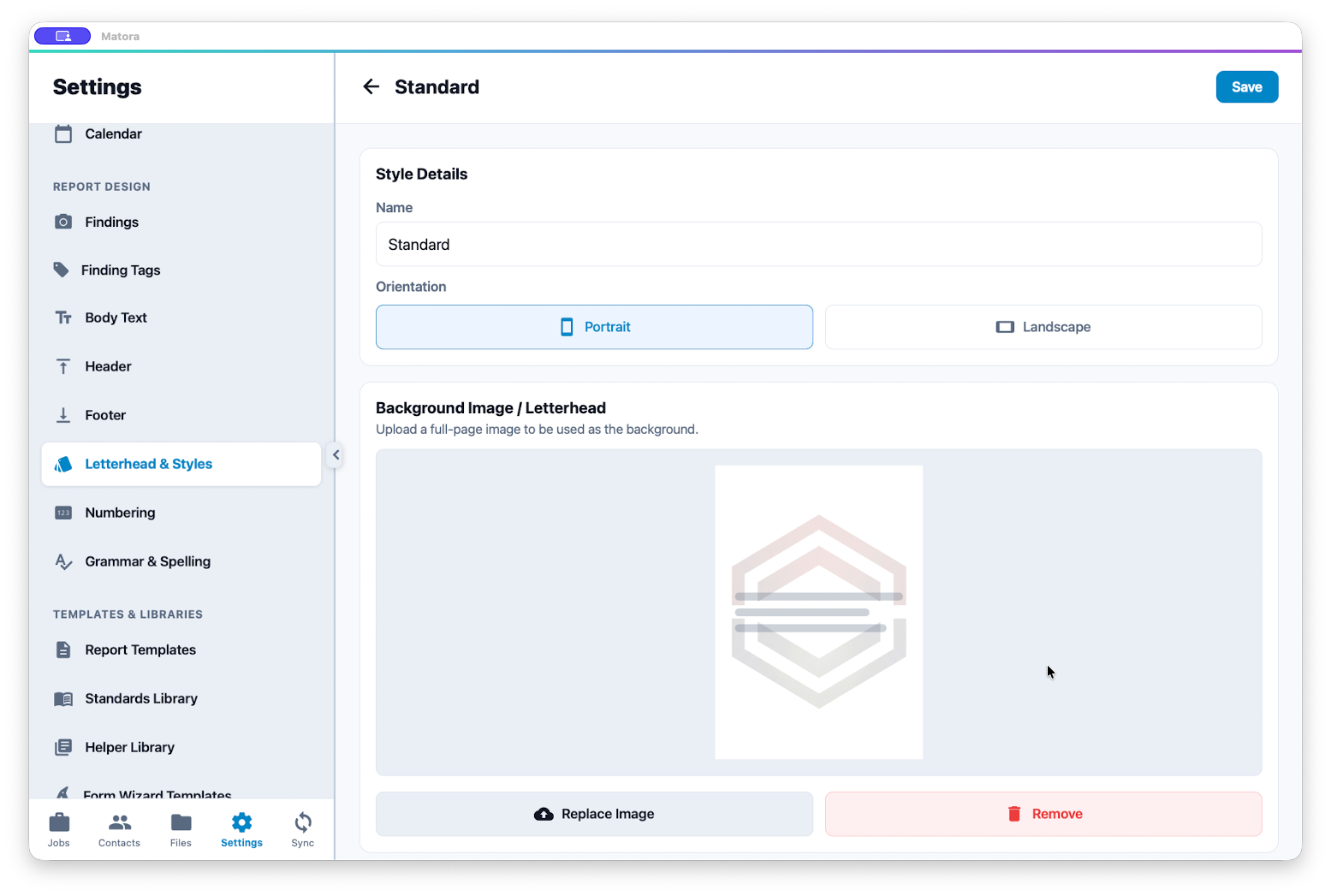
You can create your letterhead in any design app you prefer, then export it as a high-quality image and upload it to Matora. This makes it easy to reuse a letterhead you already have or create something completely custom.
Create a letterhead style
In the app: Open Letterhead & Styles · Settings → Report Letterhead
- 1Open Settings → Report Design → Letterhead & Styles.
- 2Choose the default page size for your reports, then select Add Style.
- 3Give the style a clear name and choose Portrait or Landscape.
- 4Upload the image you want to use as the page background.
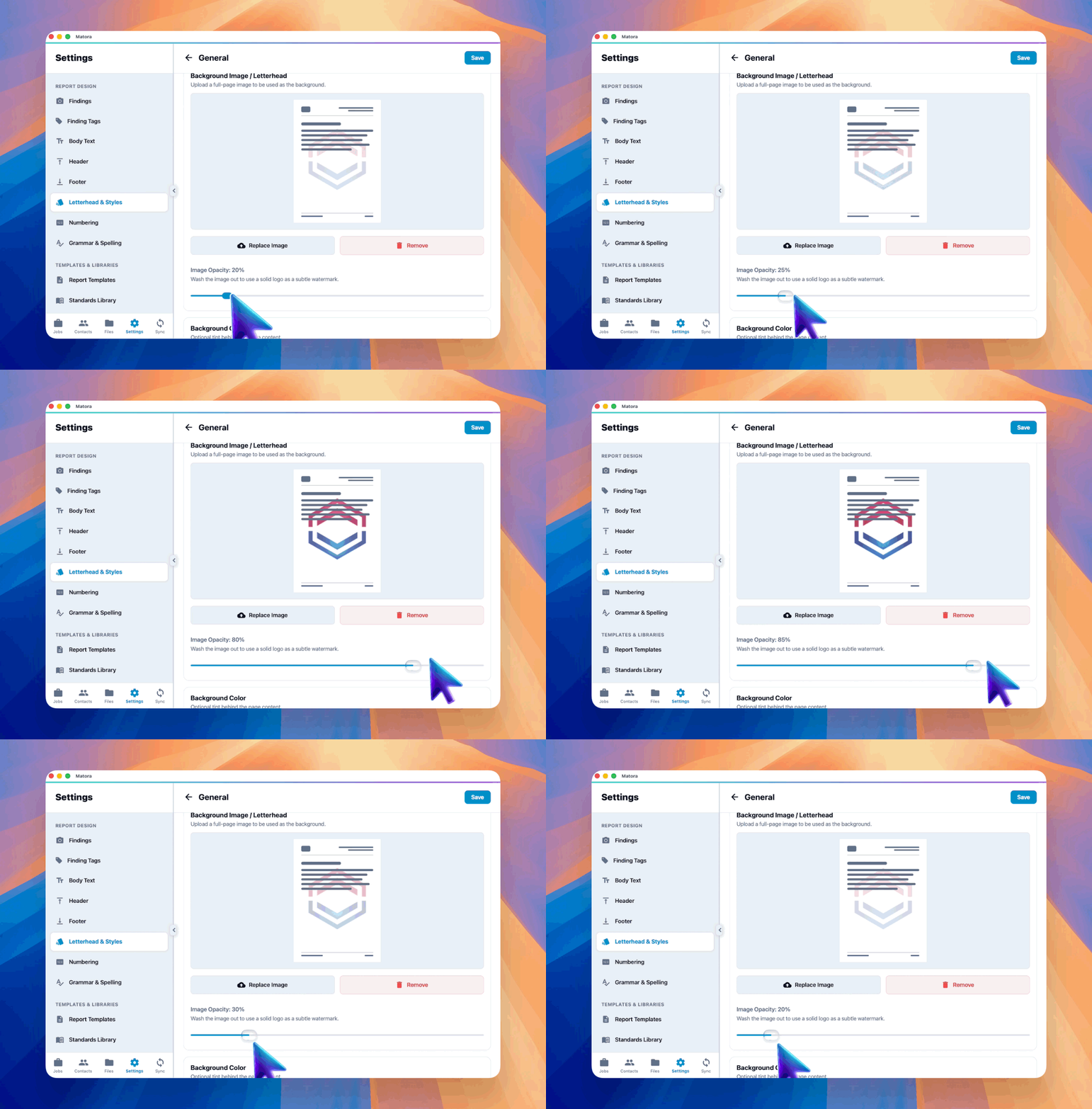
- 5Adjust the image opacity or background colour, then press Save.
- 6Mark the style as Default if it should be used automatically for new report chapters.
Choose the approach that suits your brand
- Use an existing letterhead: upload the page design your business already uses.
- Design the complete page elsewhere: combine logos, images, shapes, fixed text and business details in your preferred design app, then export the finished page as an image.
- Create a subtle watermark: upload a logo or graphic and reduce its opacity so report content remains easy to read.
- Keep body pages simple: use a clean background colour or restrained letterhead for content-heavy chapters.
Leave a clear area for report content when designing a full-page letterhead. Decorative elements and business details work best around the page edges rather than behind important text and photos.
Text included in the uploaded image is fixed. Use it for branding and permanent business details; use Matora placeholders, headers or footers for information that changes between jobs.
Use styles across your report
Create multiple styles when different pages need different designs—for example, a bold title-page style, a clean portrait style for normal chapters and a landscape style for wide tables. Choose a default style for everyday pages, then select another style when configuring a chapter that needs it.
Check the finished report
Preview or export a sample report after adding a style. Check that content remains readable, page backgrounds are sharp, fixed details are current and the design works across the chapters and orientations where it will be used.