
Create and manage report templates
Build reusable report structures with prepared chapters, layouts and content so every new report starts consistently.
Updated
Report templates let you build a complete report structure once and reuse it across jobs. A template can contain prepared chapters such as a title page, inspection findings, scope of works and supporting information, arranged in the order your team normally needs them.
How report templates work
When you create a report for a job, selecting a report template gives the new report its own working copy of the template’s chapters and prepared content. Your team can then complete or adjust that report without changing the original template.
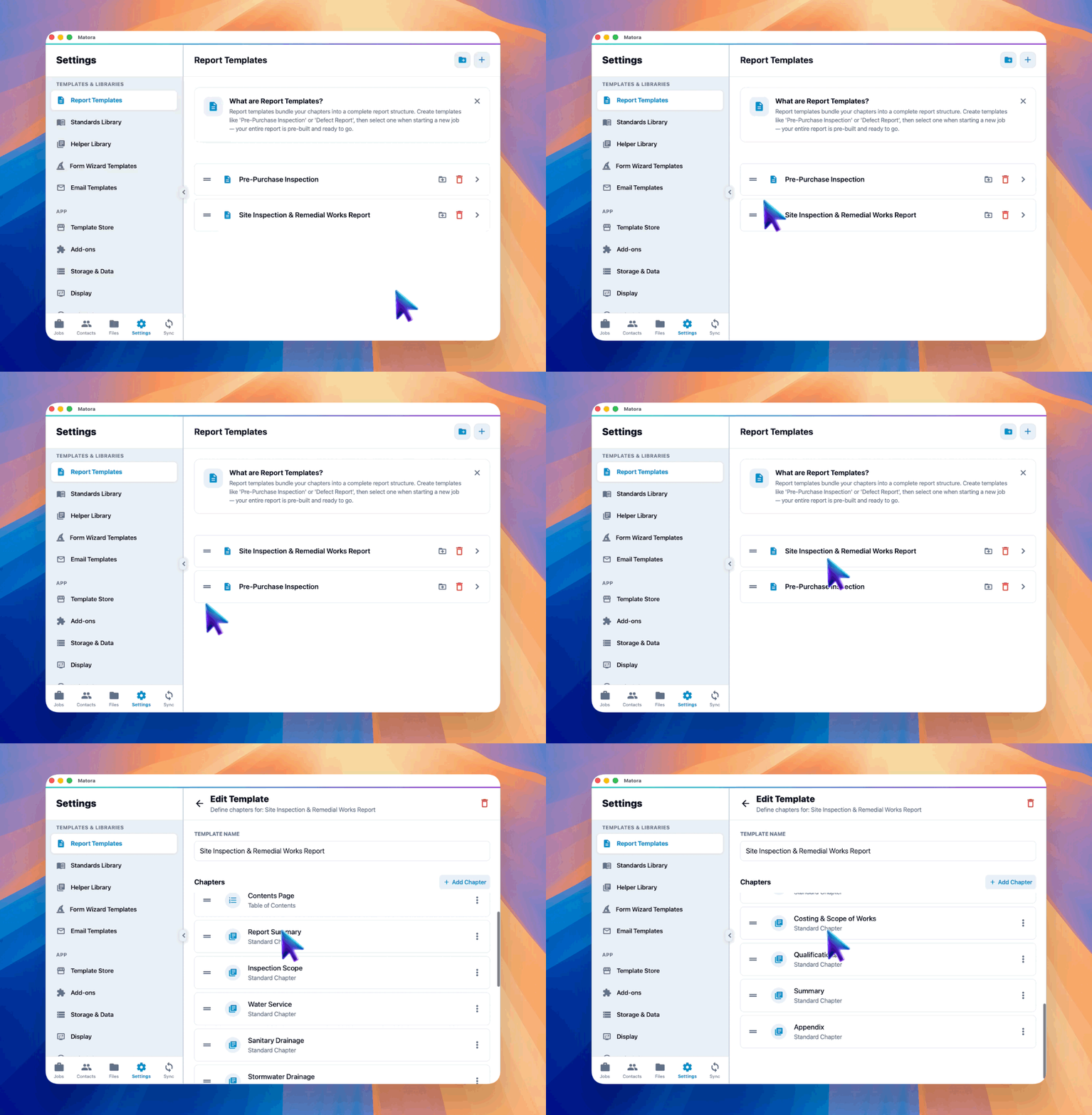
Create a separate template when a report type needs a genuinely different chapter structure. Examples might include Pre-Purchase Inspection, Defect Report and Maintenance Inspection.
Create a report template
In the app: Open Report Templates · Settings → Report Templates
- 1Open Settings → Templates & Libraries → Report Templates.
- 2Select New Template or the add button.
- 3Replace the temporary name with a clear name describing when the template should be used.
- 4Select Add Chapter to begin building its structure.
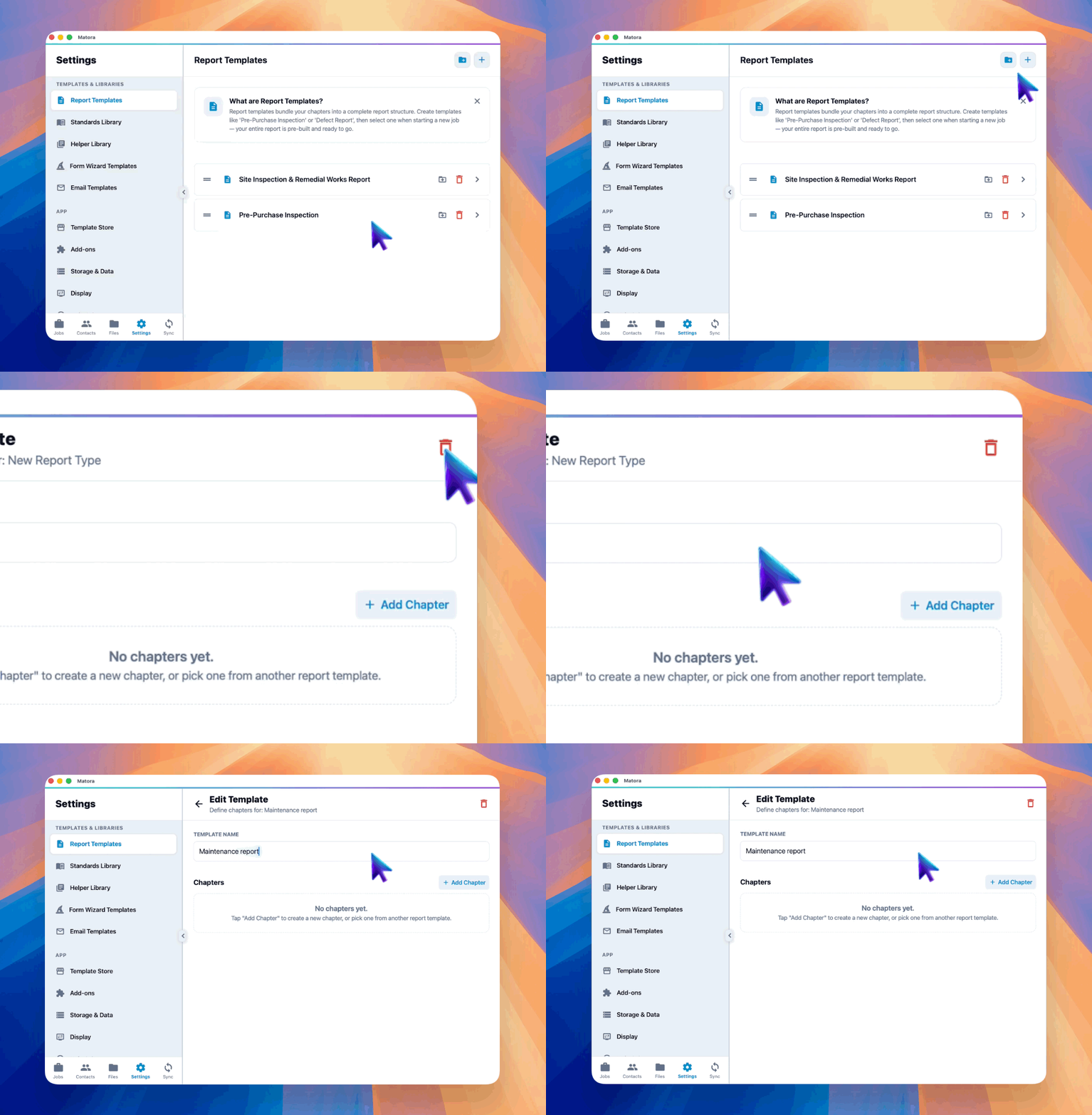
Build the chapter structure
Each chapter controls one part of the report. When creating a chapter, choose its title, chapter type, page style and footer options. Opening the chapter takes you into its editor, where you can add the content that every new report should start with.
- 1Select Add Chapter, then choose to create a new chapter.
- 2Enter the chapter title and select the appropriate chapter type.
- 3Choose its page style and whether the report footer should appear.
- 4Save the chapter and add any prepared blocks or instructions in the chapter editor.
- 5Return to the template and drag chapters into the order they should appear in new reports.
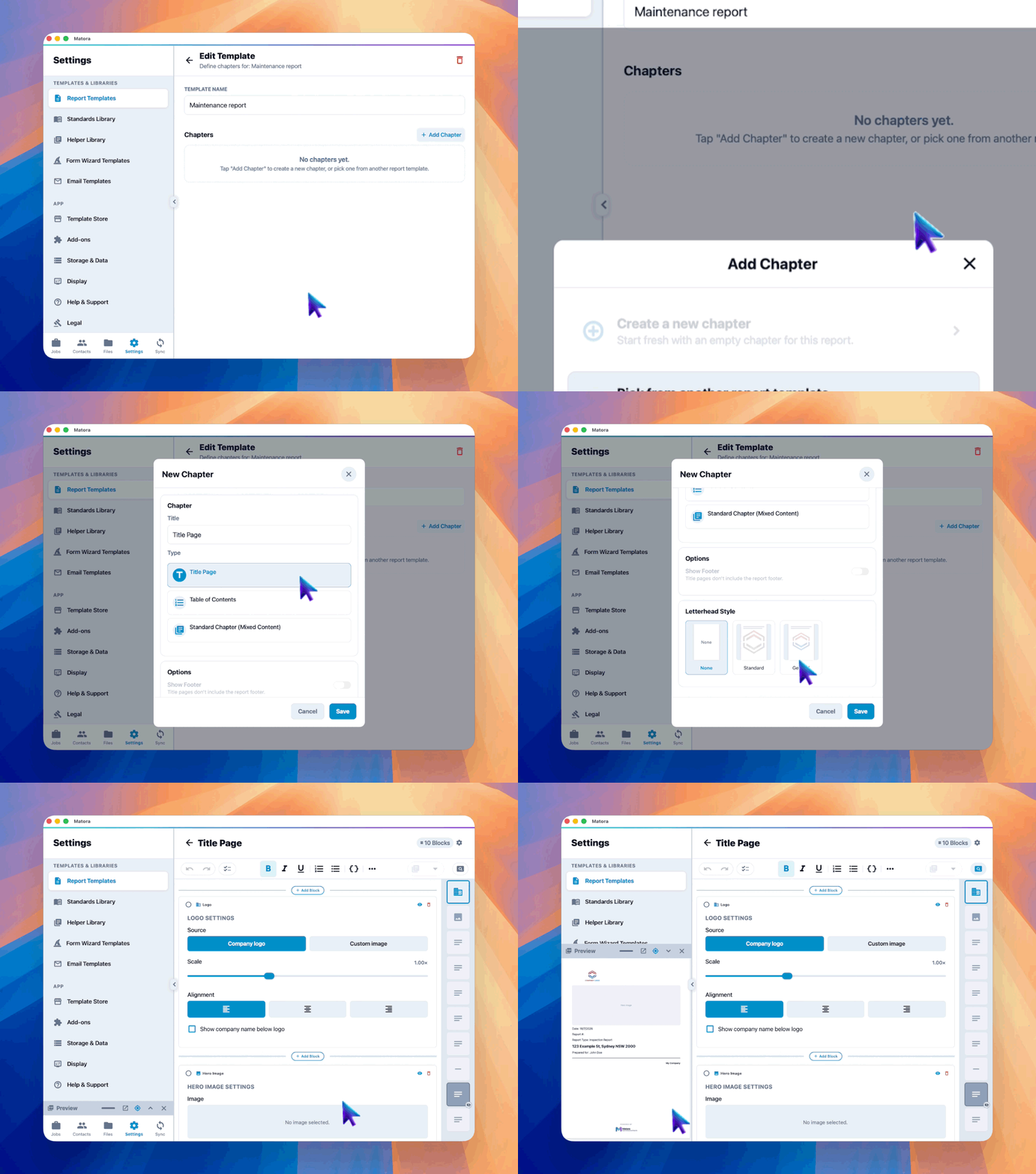
Use the Title Page chapter type when the template needs a branded cover. After saving it, Matora opens the Title Page Editor so you can arrange its blocks and automatic job information.
Reuse an existing chapter
Add Chapter can also reuse a chapter already built for another report template. This is useful for common content such as terms, limitations or standard inspection information.
- Use the original: both report templates reference the same chapter. Editing the shared chapter updates it in every report template that uses it.
- Duplicate for this report: creates an independent copy that can be changed without affecting the original chapter or other report templates.
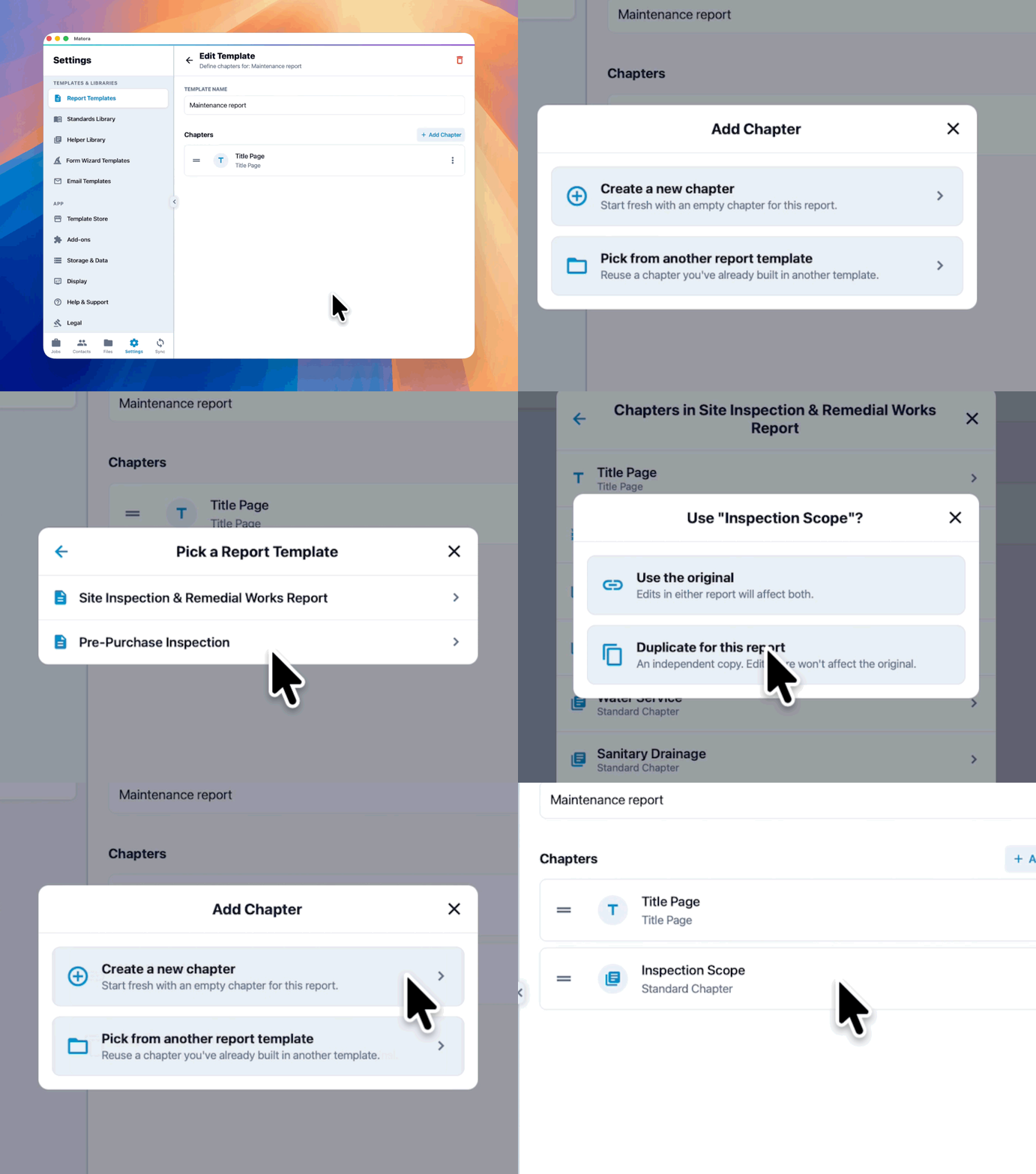
Before editing a shared chapter, check the report templates listed by Matora. Choose an independent copy when the change should apply only to the template you are currently building.
Organise your templates
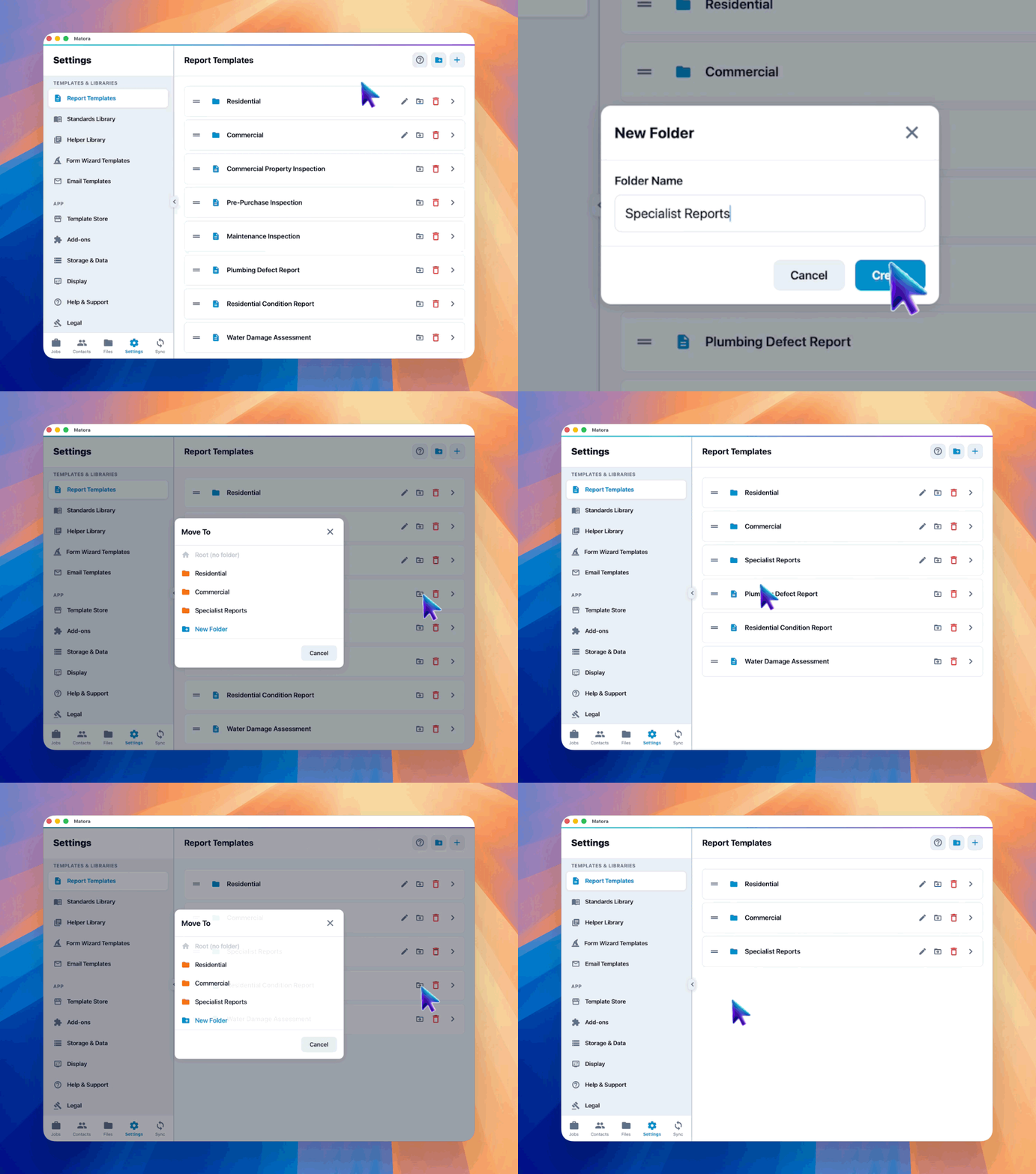
Drag report templates into a useful order or organise them into folders when the company has several inspection types. A small, clearly named collection makes it easier for staff to choose the correct starting point for a job.
Create a report from the template
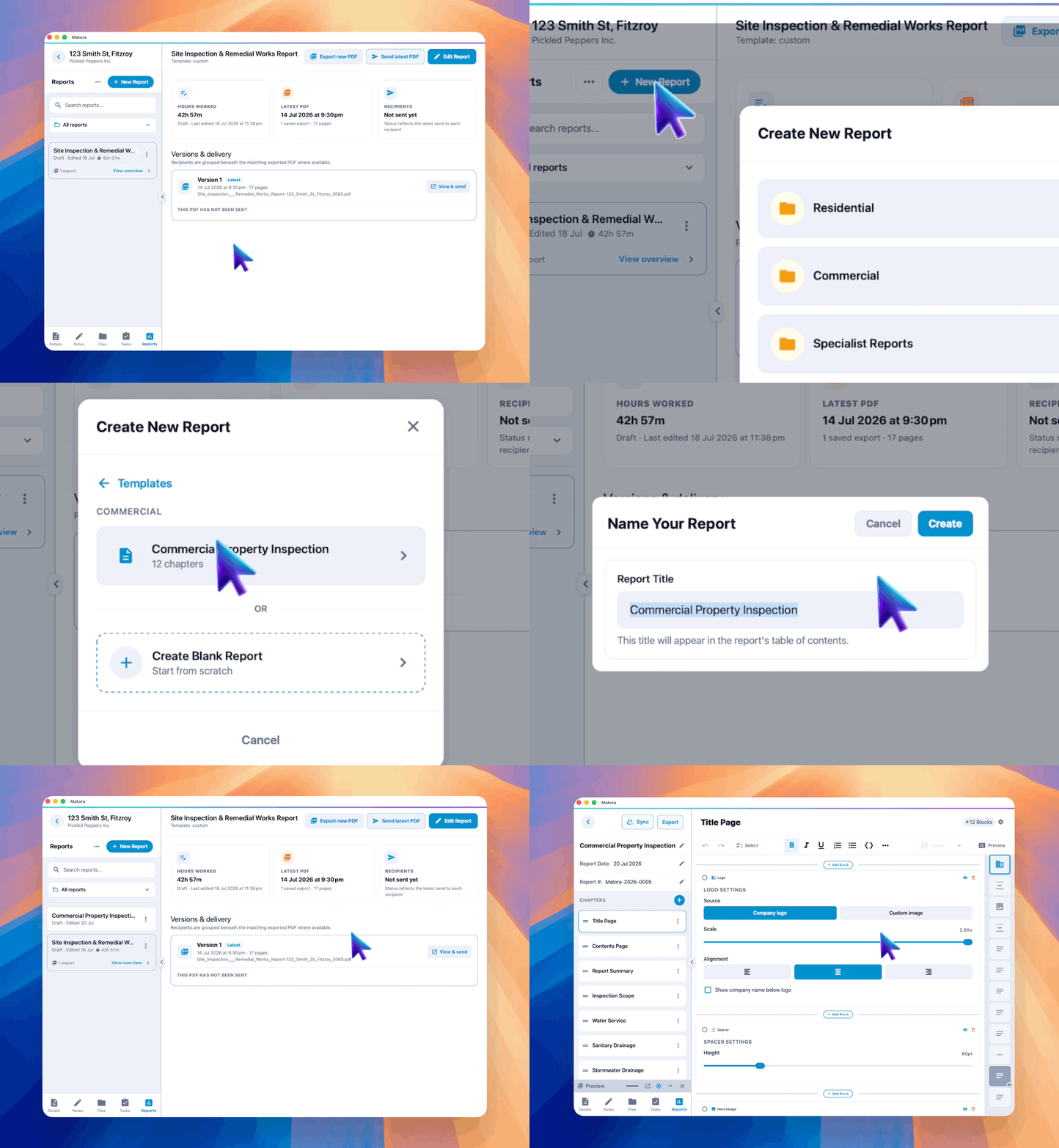
- 1Open the job that needs a new report.
- 2Choose to create a report and select the appropriate report template.
- 3Enter the report name and create it.
- 4Review the prepared chapters, then complete the report for that job.
Changes made to a report template affect reports created from it in the future. Reports already created for jobs keep their own chapters and content.
Test a new template by creating a sample report. Check its chapter order, title-page information, page styles and prepared content before the team begins using it on live jobs.